

Setup Guide - Torii Financial Intelligence on Claude
A SaaS portfolio dashboard and a NetSuite spend accuracy report, both running in your Claude, pulling data directly from your Torii tenant via MCP.
What you'll have at the end
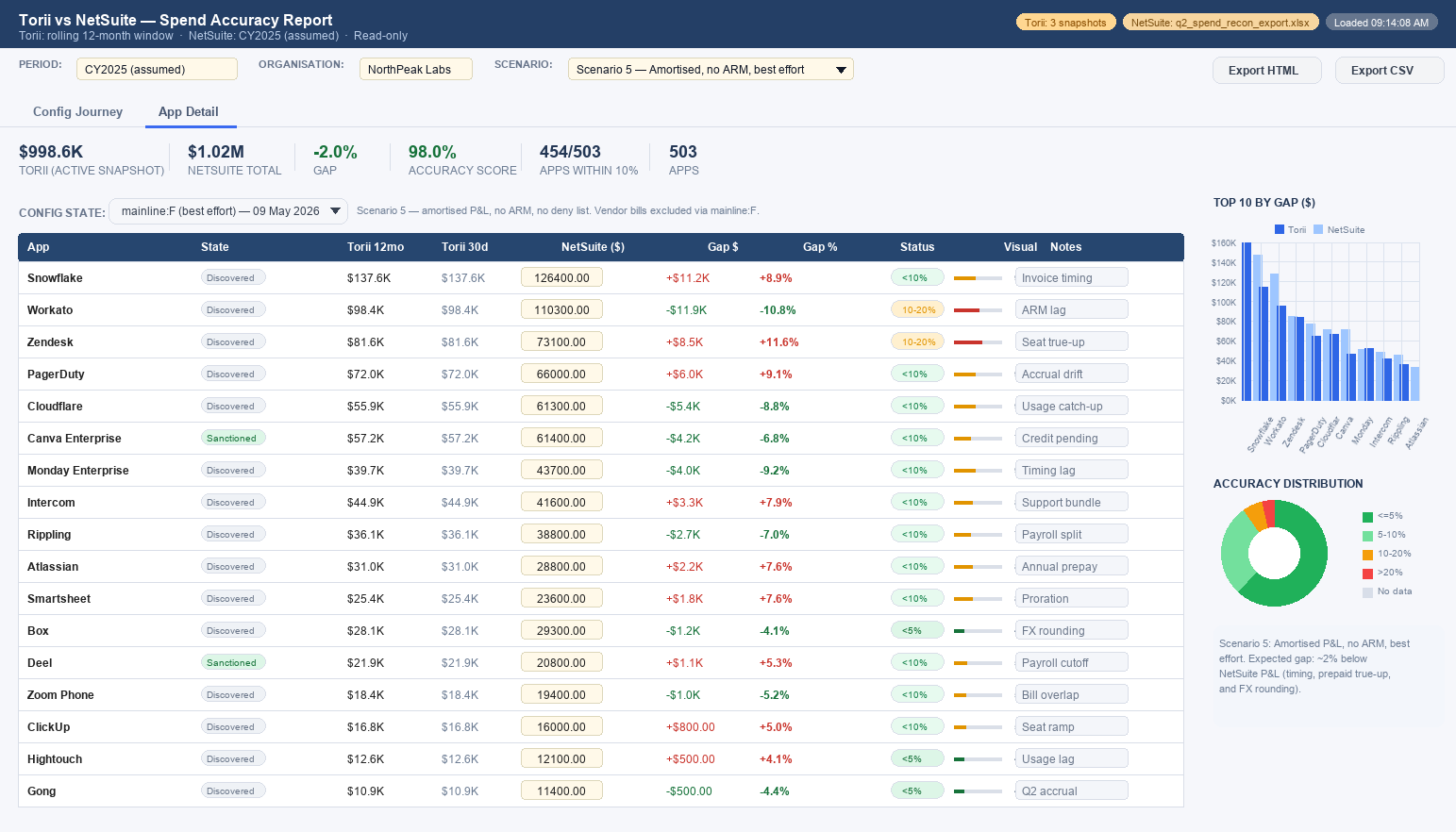
A SaaS portfolio dashboard and a NetSuite spend accuracy report, in Claude, pulling data directly from your Torii tenant via MCP. The accuracy report shows you exactly how close Torii's numbers are to your ERP — and helps us adjust the configuration based on your accounting setup.
Prerequisites
- A Torii account with at least Viewer permissions
- Claude (desktop app, web)
saas-rationalization-dashboard.skillinstalled — the NetSuite accuracy skill builds on top of this and requires it to be present first (see Part 2)- Your NetSuite spend figures as a CSV or XLSX export (or a NetSuite MCP connector — optional)
Part 1 — Connect the Torii MCP
- Open Claude and click the plugin/connector icon in the sidebar. The official Torii support knowledge base article for the MCP can be found here.
- Search for Torii and click Install.
- Authenticate with your Torii subdomain and credentials.
- Verify it's working: open a new chat and ask — "Can you call list_apps with size 3 and show me what comes back?" You should see a JSON response with app names, states, and expense fields.
- Note your MCP UUID — it appears in the tool names listed in your session, e.g.
mcp__ce101254-8a16-491a-96c4-ea90dd7799gf__list_apps. The UUID is the string betweenmcp__and__list_apps.
Tip: If
expensesshows as0for all apps, your NetSuite integration may not be syncing yet. Check Settings → Integrations → NetSuite in Torii.
Part 2 — Install the SaaS Rationalization Dashboard
This gives you a live portfolio view: app states, license utilization, active users, spend, contract renewal exposure, and a decision queue — all from your Torii tenant.
- Get the
saas-rationalization-dashboard.skillfrom your Torii CSM. Self-install or get help from Torii to set it up. - In Claude, go to Customize → Create Skill --> Upload a Skill and select the
.skillfile or.zipfile. - In a new chat, type: "Set up the SaaS rationalization dashboard for my Torii tenant."
- Claude will discover your available fields, walk you through selecting an Organizational View (e.g., Department), and create a live sidebar artifact.
- The artifact auto-refreshes each time you open it.
Part 3 — Install the NetSuite Accuracy Skill
Prerequisite: The
saas-rationalization-dashboardskill (Part 2) must be installed before this step. The NetSuite accuracy skill relies on it for Torii field discovery and MCP connectivity patterns.
This adds the financial accuracy layer: compare Torii's reported spend against NetSuite, diagnose gaps, and get a config recommendation to improve accuracy.
- Get the
torii-netsuite-accuracy-skill.skillfrom your Torii CSM. Self-install or get help from us to set it up. - Install it the same way: Plugins → Install from file.
- In a new chat, type: "I want to run the NetSuite accuracy report for my Torii tenant."
Claude will ask you which mode to use:
Option A — You have a NetSuite spend export: Attach your XLSX or CSV file. Claude reads it, matches the vendor names to your Torii apps, and builds a pre-populated gap report artifact. No live NetSuite connection needed.
Option B — You want to enter figures manually: Claude creates the artifact with editable input fields. Enter your NetSuite figures per app directly in the table.
Option C — You have a NetSuite MCP connector: Claude queries it live alongside Torii. Both data sources refresh each time you open the artifact.
Part 4 — Understand your accuracy score
The gap report shows you three things:
Config Journey tab — if you have multiple Torii snapshots from different configuration states, this shows how accuracy changed across each one. The headline is a single accuracy percentage per state.
App Detail tab — per-app gap ($, %) against your NetSuite figures, colour-coded by accuracy band, with a notes column for root cause annotations.
Export — use "Export HTML" for a self-contained point-in-time report you can share with Finance, or "Export CSV" for a spreadsheet.
What the accuracy score means
| Score | Meaning |
|---|---|
| 90%+ | Within expected range — rolling window timing accounts for most of the residual gap |
| 85–90% | Acceptable for best-effort accrual config (Scenario 5) |
| Below 80% | Structural issue — run the config wizard to diagnose |
If your score is below 80%, ask Claude: "Can you run the NetSuite configuration wizard for my tenant?" It will walk you through 6 question blocks and produce a config JSON that you can provide your to your Torii team.
What's next
- Schedule a refresh — ask Claude to set up a weekly accuracy digest that emails you a summary
- Add the config wizard — if you're not yet on the right NetSuite scenario, the skill guides you through it step by step
- Connect live NetSuite — when you're ready to replace the file-based source with a live MCP connector, update the UUID in the artifact and it switches over automatically
Updated 6 months ago