

Build — Scheduled Dashboard Refresh
Scheduled and refresh-oriented deployment for Torii dashboards — Cowork, Claude Code, and API options
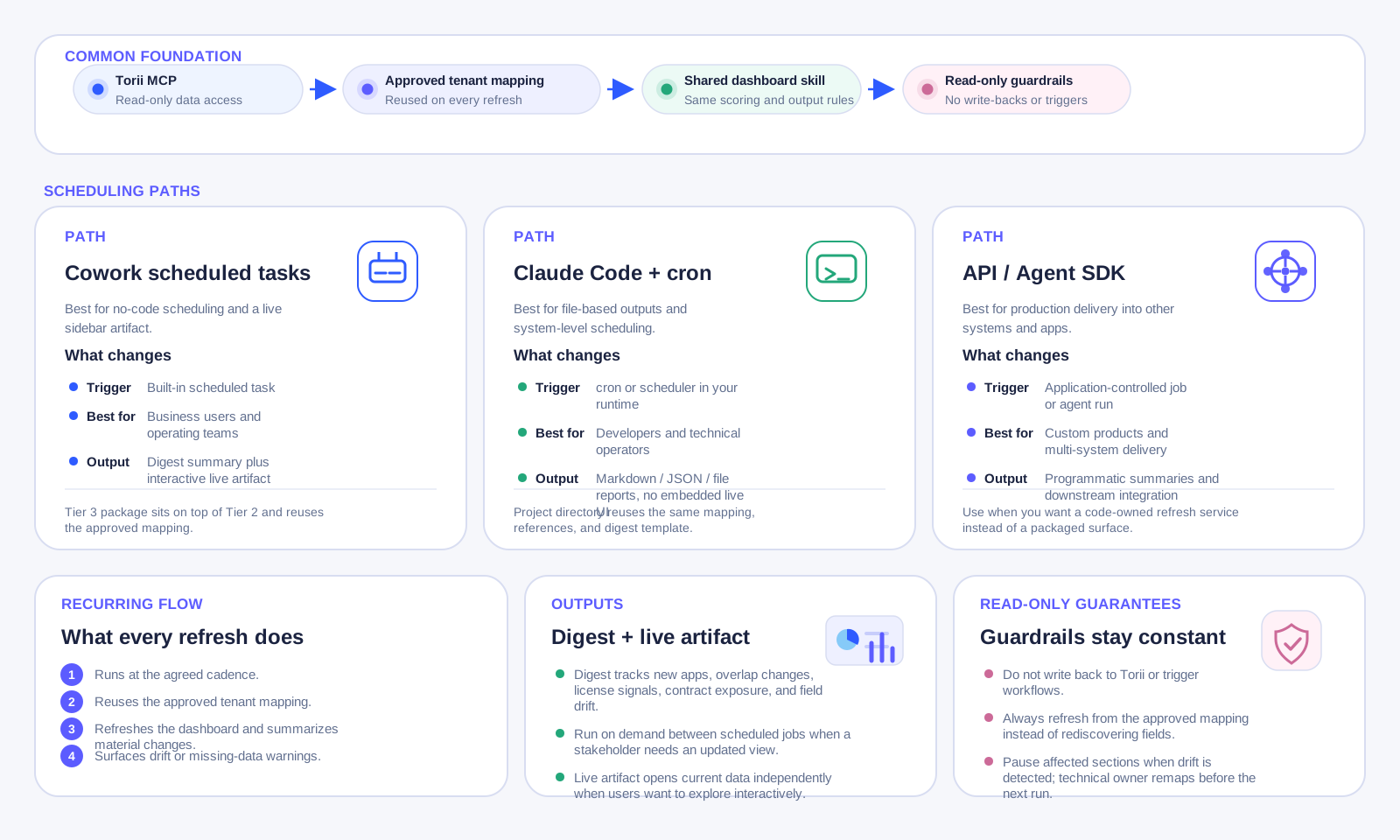
Purpose
This article covers the scheduled and refresh-oriented delivery layer for the read-only SaaS rationalization dashboard. There are three practical paths for scheduling, depending on your deployment surface and technical requirements. The Cowork customer package (customer-scheduled-skill-package) is provided as a distributable asset for the Cowork path. To get that package, please contact your Torii Customer Success Manager.
Choosing your scheduling approach
| Approach | Best for | Technical level |
|---|---|---|
| Cowork scheduled tasks | Business users, no-code scheduling, live artifact | Medium |
| Claude Code + cron | Developers, file-based outputs, system integration | Medium–High |
| Claude API / Agent SDK | Production applications, multi-system delivery | High |
All three approaches use the same Torii MCP server, the same tenant mapping, and the same read-only rules. What differs is how the refresh is triggered, how output is delivered, and how the system is operated.
Path A: Cowork scheduled tasks
The Cowork customer package (customer-scheduled-skill-package) is purpose-built for this path. Use it when you need a no-code scheduled refresh with a live sidebar artifact and digest output, operated within the Cowork environment.
This package sits on top of:
- Torii MCP for data access
- The shared
saas-rationalization-dashboardskill for dashboard logic - The Tier 2 on-demand setup (which must be completed first)
What this package depends on
This package requires all of the following:
- Claude is connected to Torii through MCP in the Cowork environment.
- The shared base skill (
saas-rationalization-dashboard) is installed or enabled. - The Tier 2 on-demand setup is complete — the first dashboard has been generated and the tenant mapping has been approved and saved.
- Cowork's scheduled tasks capability is available in your environment.
Do not configure the scheduled task before the Tier 2 setup is complete and the mapping is validated. A scheduled refresh running against an unvalidated mapping produces unreliable digests.
What this package contains
customer-scheduled-skill-package/
├── README.md
├── 01-solution-brief.md
├── 02-scheduled-refresh-guide.md
├── 03-tenant-field-mapping-guide.md
├── 04-business-user-field-mapping-wizard.md
├── 05-tenant-mapping-template.json
├── 06-dashboard-data-spec.md
├── 07-scoring-and-recommendation-model.md
├── 08-read-only-dashboard-rules.md
├── 09-daily-refresh-digest-template.md
├── 10-business-user-prompt-pack.md
└── 11-react-dashboard-template.jsx
What each file is for
README.md
README.mdPackage overview. Positions this as the scheduled layer that builds on top of the Tier 2 on-demand package. States clearly that Tier 2 must be completed first. Explains the difference between on-demand and scheduled deployment in plain terms.
01-solution-brief.md
01-solution-brief.mdCustomer-facing solution summary for the scheduled use case. Emphasizes the value of recurring refresh: visibility without manual prompting, standing digests for leadership and finance. Includes the recommended rollout sequence (Tier 2 first, Tier 3 only after the mapping is stable).
02-scheduled-refresh-guide.md
02-scheduled-refresh-guide.mdThe main deployment guide for this package. Covers:
- Prerequisites (Tier 2 complete, mapping saved, Cowork scheduling available)
- Confirming the approved mapping is saved and reusable
- Configuring the Cowork scheduled task (name, prompt, cadence options)
- Running the first on-demand test refresh before enabling the schedule
- Validating the digest format with stakeholders
- Validating field drift handling
- Defining operating ownership (business, technical, platform roles)
- Enabling the scheduled task
- Reviewing the first scheduled outputs
- On-demand refresh between scheduled runs
- Field drift remediation workflow
- Operating model summary table
- Troubleshooting (including token expiry, noisy digests, inconsistent output)
- Full deployment checklist
03-tenant-field-mapping-guide.md
03-tenant-field-mapping-guide.mdHow to map tenant-specific Torii fields into the dashboard schema. Shared from the base skill package.
04-business-user-field-mapping-wizard.md
04-business-user-field-mapping-wizard.mdThe first-run mapping wizard. Shared from the base skill package. Used during initial Tier 2 setup; included here for reference and drift remediation.
05-tenant-mapping-template.json
05-tenant-mapping-template.jsonThe reusable JSON structure for the approved tenant mapping. Includes mcpUUID field and expense cents note. The scheduled task reuses this mapping on every run.
06-dashboard-data-spec.md
06-dashboard-data-spec.mdThe normalized dashboard output schema. Shared from the base skill package.
07-scoring-and-recommendation-model.md
07-scoring-and-recommendation-model.mdThe recommendation and scoring logic. Shared from the base skill package.
08-read-only-dashboard-rules.md
08-read-only-dashboard-rules.mdOperating guardrails. Shared from the base skill package. Read-only applies to the scheduled task too — no write-back on scheduled runs.
09-daily-refresh-digest-template.md
09-daily-refresh-digest-template.mdThe digest format produced by each scheduled refresh. Includes placeholder sections for: refresh status, field mapping status, new or changed apps, functional overlap changes, license and financial signals, contract exposure, security and governance signals, read-only decision queue changes, and suggested review questions.
10-business-user-prompt-pack.md
10-business-user-prompt-pack.mdReusable prompts for business users following up on a digest. Shared from the base skill package.
11-react-dashboard-template.jsx
11-react-dashboard-template.jsxThe live-data Cowork artifact template. Uses window.cowork.callMcpTool to fetch live Torii data at render time. Complements the scheduled digest — stakeholders can open the artifact to explore current data interactively after reading the digest.
UUID configuration required. Set MCP_UUID near the top of the file to your Torii MCP server UUID.
What this package is for
This package is the right fit when you need:
- A named, repeatable refresh motion
- On-demand and scheduled refresh support
- Daily or periodic digest-style summaries
- A stable dashboard that reuses an approved field mapping across runs
- Stronger operational consistency than a purely conversational setup
This is the right package when the question shifts from "Can we build the dashboard?" to "Can we refresh and review it consistently on a schedule?"
What this package is not for
This package is not the best fit when you only need:
- A fast pilot or proof of concept
- Ad hoc interactive exploration
- A named on-demand dashboard without scheduling
Use the Tier 2 customer-cowork-skill-package for those cases.
Scheduled refresh prompt
Use this as the Cowork scheduled task prompt:
Refresh the read-only SaaS rationalization dashboard using the approved tenant mapping.
Summarize new apps, changed functional overlaps, license and contract signals, field drift,
and new review findings. Do not write back to Torii or trigger workflows.
Output in daily digest format.
This prompt is correct because it makes all key operational expectations explicit: mapping reuse, read-only constraint, digest output format, and scope of what to summarize.
On-demand refresh prompt
For manual refreshes between scheduled runs:
Refresh the SaaS rationalization dashboard now using the approved tenant mapping
and summarize changes since the last refresh.
Recommended cadence options
| Cadence | Best for |
|---|---|
| Daily (weekdays) | Active rationalization programs, imminent renewal windows |
| Weekly (Monday morning) | Steady-state portfolio monitoring |
| Monthly | Light-touch governance, stable portfolios |
| Before renewal windows | Always run 30 days before major contract renewals |
Exact first-run flow
- Complete the Tier 2 on-demand setup.
- Confirm the approved tenant mapping is saved.
- Note the MCP UUID for live artifact configuration.
- Create the Cowork scheduled task with the correct prompt and cadence.
- Run the first on-demand test refresh manually.
- Validate digest structure against
09-daily-refresh-digest-template.md. - Test field drift handling.
- Define operating ownership (business, technical, platform).
- Enable the scheduled task.
- Review the first two to three scheduled digests with stakeholders.
- Configure the live artifact UUID in
11-react-dashboard-template.jsx.
Exact repeat-run flow
- Scheduled task runs automatically at the agreed cadence.
- Task reuses the approved tenant mapping.
- Refreshes the dashboard and summarizes material changes.
- Produces the digest output.
- Surfaces field drift or missing-data warnings.
- Stakeholders review the digest.
- Business owner acts on the decision queue as needed.
- Technical owner resolves any field drift warnings.
- Stakeholders open the live artifact for interactive exploration.
Operating ownership model
| Role | Responsibility |
|---|---|
| Business owner | Reviews digests, confirms decision queue usefulness, approves mapping changes |
| Technical owner | Maintains the tenant mapping, resolves field drift, monitors task health |
| Platform owner | Manages Cowork environment access, scheduled task configuration, MCP plugin connection and token refresh |
Without clear ownership, field drift goes unresolved and digest quality degrades quickly.
Field drift handling
When a scheduled run detects that a mapped field is missing, renamed, or changed type:
- The digest surfaces a field mapping status warning.
- The affected dashboard section is paused — not silently skipped.
- The technical owner opens a Cowork session and re-runs the mapping wizard for the affected field.
- The updated mapping is saved back to
05-tenant-mapping-template.json. - The next scheduled run (or an immediate on-demand run) uses the corrected mapping.
Do not let drift warnings accumulate across multiple digests.
Live artifact alongside scheduled digests
The scheduled digest is a text-based summary. The live Cowork artifact (11-react-dashboard-template.jsx) complements it:
- Stakeholders open the artifact after reading the digest to explore findings interactively.
- The artifact pulls live Torii data independently when opened — it does not wait for a scheduled run.
- It persists in the Cowork sidebar across sessions.
- UUID must be set in the artifact source before it can load data.
Path B: Claude Code + cron
For developers and technical operators who want file-based outputs and system-level scheduling without building a full application.
How it works
- Set up a project directory containing the reference asset files and your approved tenant mapping.
- Configure the Torii MCP in the project's
.mcp.json. - Create a
CLAUDE.mdthat acts as persistent context — Claude Code reads this automatically on every invocation. - Run the first-time mapping setup interactively to produce and validate the approved mapping.
- Schedule the refresh prompt via system cron.
Step 1: Project directory structure
Create a project directory. The reference files from the base skill package belong here so Claude Code can read them on every run. The structure below uses files from tier-1-base-skill/saas-rationalization-dashboard/:
torii-dashboard/
├── CLAUDE.md                                   # persistent context — instructions + mapping
├── .mcp.json                                   # Torii MCP server configuration
├── assets/
│   └── tenant-mapping-template.json            # your approved tenant mapping (from Tier 1 assets)
├── references/                                 # reference files from Tier 1 references/
│   ├── dashboard-data-spec.md                  # normalized output schema
│   ├── scoring-and-recommendation-model.md     # recommendation logic
│   ├── read-only-dashboard-rules.md            # operating guardrails
│   ├── daily-refresh-digest-template.md        # digest format
│   ├── tenant-field-mapping-guide.md           # field mapping categories
│   └── business-user-field-mapping-wizard.md   # first-run mapping wizard
└── reports/                                    # output directory — digests written here
Copy these files directly from the tier-1-base-skill/saas-rationalization-dashboard/ package. They are the canonical reference material Claude Code uses for field mapping, scoring, output format, and read-only rules on every run.
Step 2: MCP configuration
.mcp.json (in project root):
{
  "mcpServers": {
    "torii": {
      "type": "http",
      "url": "https://api.toriihq.com/mcp",
      "auth": {
        "type": "oauth"
      }
    }
  }
}
Run claude from the project directory to complete the OAuth flow for Torii on first use.
Step 3: CLAUDE.md
CLAUDE.md is the persistent context file — Claude Code reads it automatically at the start of every session or cron run. It contains your operating rules, references to the local asset files, and your approved tenant mapping once that is complete.
CLAUDE.md (in project root):
# SaaS Rationalization Dashboard — Claude Code Context

## Role and constraints
You are a read-only SaaS rationalization dashboard assistant connected to Torii via MCP.
Never update Torii records, trigger workflows, assign owners, remove licenses, or write
back in any form. All outputs are advisory findings for human review.

## Reference files
The following files are in the `references/` directory. Use them on every run:
- `references/dashboard-data-spec.md` — the normalized output schema to produce
- `references/scoring-and-recommendation-model.md` — how to score and label apps
- `references/read-only-dashboard-rules.md` — allowed and disallowed behavior
- `references/daily-refresh-digest-template.md` — the required digest output format
- `references/tenant-field-mapping-guide.md` — field mapping categories
- `references/business-user-field-mapping-wizard.md` — first-run mapping wizard steps

## Tenant mapping
The approved tenant mapping is saved at `assets/tenant-mapping-template.json`.
Reuse this mapping on every refresh run. Do not rediscover fields unless field drift
is detected. If a mapped field is missing or changed, pause the affected section and
report the drift — do not silently guess.

## Required terminology
Always use: Functional Domain, Functional Capability, Functional Capability Path,
Organizational View. Never hardcode Department as the only drilldown.

## Expense fields
The `expenses` and `expensesLast30Days` fields from list_apps are in cents.
Divide by 100 for USD display in all outputs.
Step 4: First-run interactive setup (before cron)
Before scheduling anything, run the first-time mapping setup interactively from the terminal. This validates the MCP connection, runs the field mapping wizard, and produces the approved assets/tenant-mapping-template.json that cron will reuse.
cd /path/to/torii-dashboard
claude
Then paste this starting prompt:
Use the references in the references/ directory to set up the SaaS rationalization
dashboard for this Torii tenant. Read references/tenant-field-mapping-guide.md and
references/business-user-field-mapping-wizard.md, then discover the available app,
user, and contract fields via the Torii MCP. Guide me through approving the
Organizational View and functional grouping fields. When the mapping is approved,
save it to assets/tenant-mapping-template.json. Operate read-only throughout.
Work through the mapping wizard interactively. When done, confirm assets/tenant-mapping-template.json contains your approved mapping. This file is what all future cron runs will reference from CLAUDE.md.
You can also run a manual on-demand dashboard refresh at this point to validate the full output before enabling scheduling:
Using the approved mapping in assets/tenant-mapping-template.json and the schemas
in the references/ directory, generate the read-only SaaS rationalization dashboard
for this tenant. Include all six sections: portfolio overview, usage by Organizational
View, license distribution, spend concentration, renewal exposure, and decision queue.
Use references/scoring-and-recommendation-model.md for recommendation labels and
references/dashboard-data-spec.md for the output schema.
Step 5: Crontab entry for scheduled refresh
Once the first-run setup is validated, add the cron entry. The --print flag runs Claude Code in non-interactive (headless) mode — required for cron.
Crontab entry (daily at 7:30 AM weekdays):
30 7 * * 1-5 cd /path/to/torii-dashboard && claude --print \
  "Using the approved mapping in assets/tenant-mapping-template.json, refresh the \
   read-only SaaS rationalization dashboard. Follow the output format in \
   references/daily-refresh-digest-template.md. Summarize new apps, changed functional \
   overlaps, license and contract signals, field drift, and new decision queue items. \
   Do not write back to Torii or trigger workflows. \
   Save the output to reports/digest-$(date +\%Y-\%m-\%d).md" \
  >> /var/log/torii-refresh.log 2>&1
Key flags and details:
--print— non-interactive headless mode, required for cron. Claude Code runs the prompt and exits.- The prompt explicitly references the local asset files so Claude Code picks them up from the project directory.
- Output is saved to
reports/as a dated markdown file. - Stderr and stdout are both logged to
/var/log/torii-refresh.logfor troubleshooting.
Output
Each cron run produces a dated markdown digest file in reports/. The format follows references/daily-refresh-digest-template.md. These files can be:
- Committed to a git repository for history and diffs
- Emailed via a post-processing script
- Ingested by a downstream system (Slack webhook, Notion, Confluence, etc.)
Path B asset summary
| File | Source | Purpose in cron runs |
|---|---|---|
CLAUDE.md | You create | Persistent context: rules, references, mapping pointer |
.mcp.json | You create | Torii MCP connection config |
assets/tenant-mapping-template.json | Tier 1 assets (populated first-run) | Reused mapping — no re-discovery needed |
references/dashboard-data-spec.md | Tier 1 references | Output schema Claude produces |
references/scoring-and-recommendation-model.md | Tier 1 references | Recommendation labels and priority logic |
references/read-only-dashboard-rules.md | Tier 1 references | Guardrails enforced on every run |
references/daily-refresh-digest-template.md | Tier 1 references | Digest format for each scheduled output |
references/tenant-field-mapping-guide.md | Tier 1 references | Used during first-run setup and drift remediation |
references/business-user-field-mapping-wizard.md | Tier 1 references | Used during first-run setup and drift remediation |
Notes
- The Torii OAuth token must remain valid between scheduled runs. If it expires, re-authenticate by running
claudeinteractively in the project directory. CLAUDE.mdis the equivalent of a Cowork skill definition or a Project's custom Instructions — it is what makes the behavior consistent and self-contained across cron runs.- No live visual artifact — output is file-based markdown. For an interactive view, pair with the Cowork live artifact or render the markdown in a static site generator.
Path C: Claude API / Agent SDK
For production applications, multi-system delivery, or scenarios requiring scheduling guarantees beyond what cron or Cowork provide.
Assets you need
Before writing any application code, gather the following files from the base skill package (tier-1-base-skill/saas-rationalization-dashboard/). These files become the foundation of your system prompt and your application's behavior contract.
| File | Source | Role in your application |
|---|---|---|
assets/tenant-mapping-template.json | Tier 1 assets | Core data — approved tenant mapping embedded in the system prompt. Generated once during first-run interactive setup. |
references/dashboard-data-spec.md | Tier 1 references | Output schema — defines the normalized objects Claude must produce (groups, usageDrilldowns, portfolioSignals, contractSignals, decisionQueue) |
references/scoring-and-recommendation-model.md | Tier 1 references | Scoring logic — the seven score components and seven recommendation category labels. Keeps outputs consistent across runs. |
references/read-only-dashboard-rules.md | Tier 1 references | Guardrails — the allowed/disallowed behavior list and required advisory language. Embed in system prompt. |
references/daily-refresh-digest-template.md | Tier 1 references | Output format — the digest structure each scheduled run must produce. |
references/tenant-field-mapping-guide.md | Tier 1 references | Setup reference — field mapping categories. Used for first-run interactive setup and drift remediation. |
references/business-user-field-mapping-wizard.md | Tier 1 references | Setup wizard — the interactive flow for running field discovery and approving the mapping. Used once before the scheduled application goes live. |
Step 1: Run the first-time interactive mapping setup
Do not build the scheduled application before you have an approved tenant-mapping-template.json. Run the mapping setup interactively first — either using Claude.ai with the Torii integration, a Claude Desktop session, or Claude Code — then use the output in your application.
Starting prompt for the interactive setup session:
Read the field mapping wizard in references/business-user-field-mapping-wizard.md
and the tenant field mapping guide in references/tenant-field-mapping-guide.md.

Then, using the Torii MCP, discover the available app, user, and contract fields
for this tenant. Guide me through approving the Organizational View and functional
grouping fields. When the mapping is approved, output the final configuration as
valid JSON following the structure in assets/tenant-mapping-template.json.

Operate read-only throughout. Do not update any Torii records.
Save the output as your approved tenant-mapping-template.json. This file is what gets embedded in your application's system prompt.
Step 2: Compose the system prompt
The system prompt for your scheduled application is built from the content of the reference files. Load them at application startup — do not hardcode their content since they may be updated:
import json
from pathlib import Path

def load_asset(path: str) -> str:
    return Path(path).read_text()

def build_system_prompt(assets_dir: str = "assets", refs_dir: str = "references") -> str:
    mapping = load_asset(f"{assets_dir}/tenant-mapping-template.json")
    data_spec = load_asset(f"{refs_dir}/dashboard-data-spec.md")
    scoring = load_asset(f"{refs_dir}/scoring-and-recommendation-model.md")
    rules = load_asset(f"{refs_dir}/read-only-dashboard-rules.md")
    digest_template = load_asset(f"{refs_dir}/daily-refresh-digest-template.md")

    return f"""
You are a read-only SaaS rationalization dashboard assistant connected to Torii via MCP.

## Operating rules
{rules}

## Approved tenant mapping
The following mapping was approved during first-run setup. Reuse it on every refresh.
Do not rediscover fields unless you detect drift in a currently mapped field.
{mapping}

## Output schema
Produce outputs conforming to the following normalized schema:
{data_spec}

## Scoring and recommendation model
Use these definitions for all recommendation labels and review priorities:
{scoring}

## Digest format
Structure every scheduled refresh output using this template:
{digest_template}

## Expense fields
The `expenses` and `expensesLast30Days` fields from list_apps are in cents.
Always divide by 100 for USD display.

## Field drift handling
If a mapped field is missing, renamed, or changed type: pause the affected dashboard
section, report the drift clearly, and do not silently guess a replacement.
"""
Step 3: The refresh call
import anthropic
from datetime import datetime

client = anthropic.Anthropic()

SYSTEM_PROMPT = build_system_prompt()

REFRESH_PROMPT = """
Refresh the read-only SaaS rationalization dashboard using the approved tenant mapping
in the system prompt. Summarize new apps, changed functional overlaps, license and
contract signals, field drift, and new review findings. Output in the digest format
specified in the system prompt. Do not write back to Torii or trigger workflows.
"""

response = client.beta.messages.create(
    model="claude-sonnet-4-6",
    max_tokens=8096,
    system=SYSTEM_PROMPT,
    tools=[
        {
            "type": "mcp",
            "server_url": "https://api.toriihq.com/mcp",
            "server_name": "torii",
            "auth": {"type": "oauth", "token": get_torii_oauth_token()}
        }
    ],
    messages=[{"role": "user", "content": REFRESH_PROMPT}]
)

digest = response.content[0].text
deliver_digest(digest, date=datetime.today())  # email, Slack, database, etc.
Step 4: OAuth token management
The Torii MCP uses OAuth. Your application must acquire and refresh the Torii OAuth token independently — it is passed per-call in the auth parameter above. Implement a token store appropriate for your environment:
def get_torii_oauth_token() -> str:
    # Retrieve from your secrets manager, environment variable, or token store.
    # Implement refresh logic if the token has an expiry.
    # Example: AWS Secrets Manager, HashiCorp Vault, environment variable.
    token = os.environ.get("TORII_OAUTH_TOKEN")
    if not token:
        raise EnvironmentError("TORII_OAUTH_TOKEN is not set")
    return token
Never hardcode the token. Use a secrets manager appropriate for your infrastructure.
Step 5: Agent SDK for multi-step orchestration
For complex refresh pipelines, the Agent SDK allows each phase to be a discrete orchestrated step with independent error handling:
Agent 1 — Drift detection: Calls list_app_fields_metadata, list_user_fields_metadata, and list_contract_fields_metadata. Compares current field availability against the saved tenant-mapping-template.json. Returns a drift report.
Agent 2 — Mapping remediation (conditional): If drift was detected, runs the mapping wizard for the affected fields using references/business-user-field-mapping-wizard.md as its instruction set. Updates tenant-mapping-template.json. Only runs when drift is present.
Agent 3 — Dashboard refresh: Calls list_apps and list_contracts. Applies the approved mapping. Produces the normalized dashboard objects per references/dashboard-data-spec.md. Applies scoring per references/scoring-and-recommendation-model.md.
Agent 4 — Digest assembly and delivery: Formats the output per references/daily-refresh-digest-template.md. Delivers to email, Slack, database, or BI tool.
This pattern is most valuable when you need independent retry logic per phase, when you want to parallelize list_apps and list_contracts calls across large tenants, or when drift remediation should be human-reviewed before the refresh proceeds.
Path C application file layout
torii-refresh-app/
├── main.py                             # scheduler entry point
├── refresh.py                          # API call logic and delivery
├── system_prompt.py                    # prompt builder (loads reference files)
├── token.py                            # OAuth token management
├── assets/
│   └── tenant-mapping-template.json    # approved mapping (generated first-run)
├── references/                         # reference files from Tier 1
│   ├── dashboard-data-spec.md
│   ├── scoring-and-recommendation-model.md
│   ├── read-only-dashboard-rules.md
│   ├── daily-refresh-digest-template.md
│   ├── tenant-field-mapping-guide.md
│   └── business-user-field-mapping-wizard.md
└── reports/                            # optional: archive digests locally
Notes
- OAuth token management for Torii MCP must be handled in application code — implement a token refresh flow appropriate for your environment. Never hardcode tokens.
- Load reference files at runtime rather than hardcoding their content in the system prompt. This means updating a reference file automatically takes effect on the next run without a code change.
- This is the most flexible and production-grade scheduling path.
- No live visual artifact — output format is whatever your application produces. If you also want an interactive sidebar view, pair your API-generated digests with the Cowork live artifact for interactive exploration.
Read-only applies to all three paths
Regardless of scheduling approach, all runs are strictly read-only:
- Do not update Torii records.
- Do not trigger workflows.
- Do not create contracts.
- Do not remove licenses.
- Do not modify ownership.
- Do not perform automated remediation.
The digest is advisory. Any actions it recommends must be taken manually by the relevant stakeholders.
Troubleshooting
The task remaps fields on every run. The approved mapping is not being reused consistently. Confirm it is referenced explicitly in the task prompt.
The digest is too noisy. Focus the prompt on material changes only. A digest that reports everything on every run will be ignored after the first few weeks.
Grouped outputs are inconsistent across runs. The Organizational View normalization rules are incomplete. Update the normalization dictionary in 05-tenant-mapping-template.json.
The MCP token expires between scheduled runs. Re-authenticate the Torii MCP plugin in Cowork. Check Torii's token expiry guidance for your environment and ensure the token is valid for unattended access.
Renewal exposure is not appearing. Verify that endDate fields are populated for active contracts in the Torii tenant.
The task offers write-back actions. The task prompt must include an explicit read-only instruction: Do not write back to Torii or trigger workflows.
Final checklist
All paths:
- On-demand dashboard validated before enabling scheduled refresh
- Approved tenant mapping saved and reusable
- First on-demand test refresh passed cleanly
- Digest format validated with stakeholders
- Field drift handling confirmed
- Operating ownership defined
- Read-only behavior confirmed throughout
Path A — Cowork:
- Cowork scheduled task created with correct prompt and cadence
- Scheduled task enabled
- First scheduled digests reviewed with stakeholders
- Live artifact configured with correct MCP UUID
Path B — Claude Code + cron:
-
CLAUDE.mdcontains approved tenant mapping and read-only rules - Cron entry tested with a manual dry run
- Output directory and log path confirmed
- Torii OAuth token refresh process documented
Path C — API / Agent SDK:
- System prompt contains approved tenant mapping and read-only rules
- OAuth token acquisition and refresh implemented
- Delivery mechanism (email, Slack, database) tested
- Scheduling trigger configured and tested end-to-end
Updated 6 months ago