

Connect Claude to Torii
Using the Torii MCP across Claude's deployment surfaces
Purpose
This guide shows how to connect Claude to Torii using Torii's remote MCP server. It covers every major Claude deployment surface so you can choose the connection method that matches your use case — from a quick chat session to a fully automated agent pipeline.
What you will accomplish
By the end of this guide you will have:
- A working connection between Claude and Torii on your chosen deployment surface.
- OAuth authentication completed successfully.
- A validated connection that can answer basic Torii questions.
- A clear understanding of which surface fits your dashboarding use case
What Torii MCP is
Torii provides a web Model Context Protocol (MCP) server that lets AI assistants like Claude securely query and act on Torii data using your existing Torii account and permissions.
MCP is an open standard for AI assistants and agents to connect to external data sources and tools through a common interface. The same Torii MCP server endpoint works across all Claude deployment surfaces — only the connection setup differs per surface.
Torii MCP server details
The Torii MCP server URL is the same regardless of how you are connecting Claude:
MCP Server URL: https://api.toriihq.com/mcp
Authentication: OAuth
Important note about this guide
Torii's MCP server can expose both read/query capabilities and action capabilities — including the ability to update users, create contracts, and run workflows. The official Torii support article provides the most up-to-date capability list.
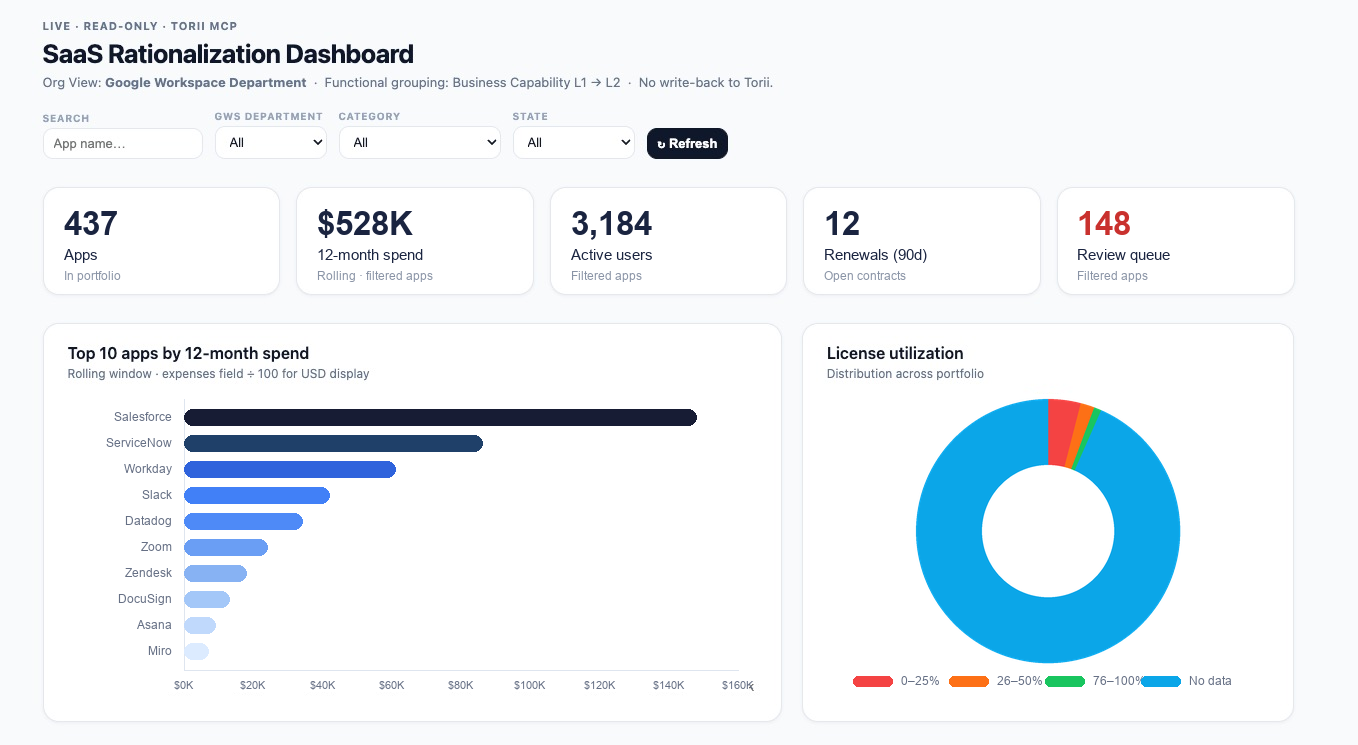
This guide intentionally focuses on a read-only dashboard pattern. Even if action tools are available in your environment, this setup is meant for analysis, drilldowns, and recommendations only.
Deployment surfaces overview
Claude can connect to Torii MCP from six distinct surfaces. Choose the one that matches your technical context and dashboarding goals:
| Surface | Best for | Technical level |
|---|---|---|
| Claude.ai web chat | Quick exploration, ad hoc queries | None |
| Claude.ai Projects | Repeatable team dashboard, persistent instructions | Low |
| Claude Desktop app | Local-context dashboarding, offline-friendly | Low–Medium |
| Cowork | Packaged skills, live artifacts, scheduled tasks | Medium |
| Claude Code CLI | Agentic workflows, developer automation | Medium–High |
| Claude API / Agent SDK | Custom applications, full scheduling control | High |
Surface 1: Claude.ai web chat
What it is
The simplest path. Open claude.ai, add Torii as an integration, and query Torii data in a chat session with no additional setup.
Setup steps
- Go to claude.ai and sign in.
- Open Settings → Integrations (or the connectors/tools panel in your chat interface).
- Add a new integration using:
- Name:
Torii - MCP Server URL:
https://api.toriihq.com/mcp - Authentication:
OAuth
- Name:
- Complete the OAuth flow — you will be redirected to sign in to Torii.
- Return to Claude.ai and enable the Torii integration in a new chat.
Notes
- The integration is scoped to your personal Claude.ai account.
- Torii data access reflects the permissions of your Torii account.
- Each new chat session may require you to re-enable the integration from the tools menu.
- Best suited for ad hoc exploration before committing to a packaged deployment.
Surface 2: Claude.ai Projects
What it is
Claude Projects give you a persistent workspace with custom system instructions and shared context. This is the closest Claude equivalent to a ChatGPT Custom GPT — a named, configured assistant that team members can return to without re-prompting from scratch each time.
Setup steps
- Go to claude.ai and open Projects.
- Create a new project named something like
SaaS Rationalization Dashboard. - In the project Instructions (system prompt), paste your dashboard behavior rules — the read-only constraint, approved Organizational View, vocabulary requirements, and tenant mapping reference.
- Add the Torii MCP integration to the project (same OAuth flow as Surface 1).
- Share the project with team members who need dashboard access.
Notes
- Instructions persist across all conversations in the project — team members get consistent behavior without needing to re-prompt.
- The saved tenant mapping JSON can be pasted into the project context or uploaded as a file so it is always available.
- Projects are well-suited for the Tier 2 on-demand use case without requiring Cowork.
- No live artifact capability (that is Cowork-specific), but conversational dashboard output is fully supported.
Surface 3: Claude Desktop app
What it is
The Claude Desktop application supports MCP servers configured locally via a JSON config file. This lets you connect Claude to Torii MCP from your desktop, optionally alongside a local folder of context files such as saved tenant mappings, reference documents, or previous dashboard outputs.
Setup steps
- Install the Claude Desktop app if not already installed.
- Locate the Claude Desktop MCP configuration file:
- macOS:
~/Library/Application Support/Claude/claude_desktop_config.json - Windows:
%APPDATA%\Claude\claude_desktop_config.json
- macOS:
- Add the Torii MCP server to the configuration:
{
  "mcpServers": {
    "torii": {
      "command": "npx",
      "args": ["-y", "@modelcontextprotocol/server-fetch"],
      "env": {
        "MCP_SERVER_URL": "https://api.toriihq.com/mcp"
      }
    }
  }
}
Note: The exact configuration format depends on whether Torii's MCP server is accessed via a fetch-based proxy or a direct remote connection. Verify the current recommended configuration in Torii's MCP documentation before deploying.
- Restart Claude Desktop.
- Complete the OAuth flow when prompted.
- Optionally, point Claude Desktop at a local folder containing your tenant mapping JSON and reference documents for additional context.
Notes
- The local folder feature lets you keep the tenant mapping template alongside the conversation, making it easy to reference and update.
- Suitable for individual power users or developers who prefer a desktop-native experience.
- No live web artifact capability, but conversational and file-based dashboard outputs are fully supported.
Surface 4: Cowork
What it is
Cowork adds a layer of skill packaging, live sidebar artifacts, and scheduled tasks on top of the Claude + Torii MCP connection. It is the right surface when you need a reusable named skill, a persistent live dashboard artifact that pulls data at render time, or automated recurring refreshes.
Setup steps
- Open your Cowork environment.
- Open Settings or the Plugins / Connectors panel.
- Add the Torii MCP plugin:
- Name:
Torii - MCP Server URL:
https://api.toriihq.com/mcp - Authentication:
OAuth
- Name:
- Complete the OAuth flow.
- Enable the Torii plugin in your Cowork session.
Finding your MCP UUID in Cowork
After connecting, Torii tools appear in your session with names like:
mcp__<YOUR-UUID>__list_apps
mcp__<YOUR-UUID>__list_contracts
The UUID between the __ delimiters is your Torii MCP server UUID. You will need this when configuring the live dashboard artifact (react-dashboard-template.jsx).
Notes
- The live artifact uses
window.cowork.callMcpToolto fetch live Torii data at render time — this capability is Cowork-specific. - Cowork scheduled tasks enable automated recurring dashboard refreshes.
- The
saas-rationalization-dashboardskill package (Tier 1–3) is designed for this surface.
Surface 5: Claude Code CLI
What it is
Claude Code is Anthropic's CLI tool for agentic coding and automation. When configured with the Torii MCP server, it can run multi-step dashboard workflows, generate and save output files, and be scheduled via system cron for recurring refreshes — all from the terminal.
Setup steps
- Install Claude Code:
npm install -g @anthropic-ai/claude-code - Configure the Torii MCP server in your Claude Code settings. In your project or global
.mcp.json:
{
  "mcpServers": {
    "torii": {
      "type": "http",
      "url": "https://api.toriihq.com/mcp",
      "auth": {
        "type": "oauth"
      }
    }
  }
}- Run
claudein your terminal and complete the OAuth flow when prompted. - Validate the connection:
claude "List the top 10 Torii apps by spend"
Notes
- Claude Code can read and write local files, making it well-suited for saving tenant mappings, generating dashboard reports as markdown or HTML files, and committing outputs to a repository.
- Scheduled refreshes can be driven by system cron, calling Claude Code with a predefined prompt and output path.
- The
CLAUDE.mdfile in your project directory can serve as persistent context — paste your tenant mapping and dashboard instructions there. - Suitable for developers and technical operators who want programmatic control without a full API build.
- See the Build — Scheduled Skill Package article for more on Claude Code-based scheduling.
Surface 6: Claude API / Agent SDK
What it is
The Anthropic API and Agent SDK provide full programmatic control over Claude's behavior, tool use, and scheduling. This is the right surface for building custom applications, integrating dashboard refresh into existing systems, or orchestrating sophisticated multi-step agents.
Setup steps
- Obtain an Anthropic API key from console.anthropic.com.
- Install the Anthropic SDK:
pip install anthropicornpm install @anthropic-ai/sdk - Configure MCP tool use in your API calls. Torii's tools are available as MCP-formatted tool definitions. A minimal Python example:
import anthropic

client = anthropic.Anthropic()

response = client.beta.messages.create(
    model="claude-sonnet-4-6",
    max_tokens=4096,
    tools=[
        {
            "type": "mcp",
            "server_url": "https://api.toriihq.com/mcp",
            "server_name": "torii",
            "auth": {"type": "oauth", "token": "<YOUR_TORII_OAUTH_TOKEN>"}
        }
    ],
    messages=[
        {"role": "user", "content": "List the top 10 Torii apps by spend. Read-only."}
    ]
)- Handle OAuth token acquisition for the Torii MCP server as part of your application's authentication flow.
Notes
- Full control over scheduling, output format, and downstream delivery (email, Slack, dashboards, databases).
- The Agent SDK supports multi-step agentic workflows — field discovery, mapping, dashboard generation, and digest delivery can all be orchestrated programmatically.
- Requires development work but is the most flexible and scalable path for production deployments.
- See the Build — Scheduled Skill Package article for more on API-based scheduling.
Validating any connection
Regardless of which surface you use, validate the connection with these prompts before building a dashboard:
Which apps in Torii have more than 100 users?Show me contracts renewing in the next 60 days.List the top apps by 12-month spend.
If these return Torii data, the connection is ready.
Security and permissions model
Across all surfaces, the Torii MCP server uses the same access controls as the Torii UI. It acts on behalf of the authenticated user and respects that user's Torii role.
Recommended practice: Use an account with appropriate portfolio-level read access, following your organization's least-privilege rules.
Read-only dashboard policy
For all surfaces, the dashboard pattern is read-only. Do not use the MCP connection to update users, create contracts, trigger workflows, remove licenses, or write back to Torii in any form.
Common setup issues
The integration or plugin option is not visible. Verify that your plan or environment supports MCP connections on that surface. Check Anthropic's current documentation for surface-specific availability.
OAuth completed but no Torii data is returned. Confirm the integration is active in the current session. On some surfaces, you must explicitly enable the tool after connecting.
Claude offers write actions you do not want. Torii MCP can expose action capabilities. Enforce a read-only instruction in your system prompt or conversation instructions.
What comes next
Once Claude is connected to Torii through MCP on your chosen surface, the next step is to choose the right deployment model and design the dashboard experience. See the Choose article for a full comparison of packaging options across all surfaces.
Updated 6 months ago