

Design - Organizational Drill-Downs
Design drilldowns for Departments, Business Units, Legal Entities, and other slices
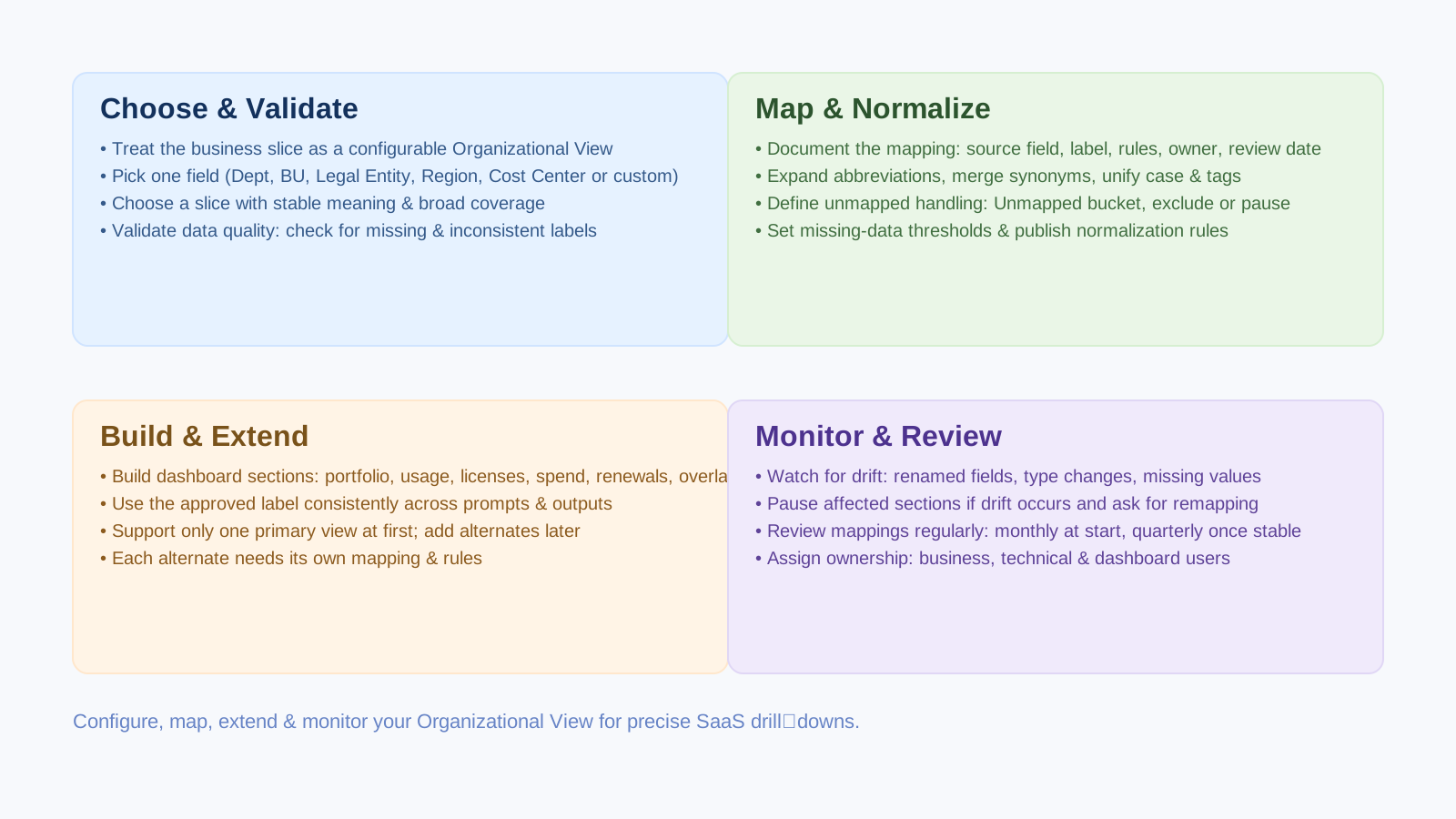
Purpose
This guide provides a pattern for organizational drilldowns in Torii-powered Claude dashboards across all deployment surfaces.
The goal is not just to answer generic SaaS questions. The goal is to let you slice software usage, license consumption, spend, renewal exposure, and rationalization candidates by the business dimensions that matter in your environment. The Organizational View model described here applies equally whether you are using Claude.ai chat, a Project, Cowork, Claude Code, or the API — it is a data and design pattern, not a surface-specific feature.
What this guide helps you do
By the end of this guide you should be able to:
- Choose the right primary drilldown field
- Define a reusable Organizational View mapping
- Normalize inconsistent field values
- Handle missing data and field drift safely
- Support consistent dashboard prompts and outputs across the tenant
Why this matters
A dashboard becomes much more useful when it answers questions like:
- Which Business Units have the highest concentration of overlapping apps?
- Which Legal Entities are exposed to the most upcoming renewals?
- Which Departments carry the heaviest license footprint for collaboration tools?
- Which Cost Centers are associated with the highest software spend?
Without a clean organizational drilldown model, the dashboard becomes a generic summary rather than a decision-support tool.
Start with one principle
Treat the business slice as a configurable concept called Organizational View.
Your first Organizational View might be Department, Business Unit, Legal Entity, Region, Cost Center, or a tenant-specific grouping field. The important thing is not the label — it is that the field is stable, useful, and reusable.
How this fits the Torii MCP model
The Torii MCP lets Claude query Torii data and call MCP-exposed tools while respecting the signed-in user's Torii role and permissions. Field discovery uses tools like list_app_fields_metadata, list_user_fields_metadata, and list_contract_fields_metadata to identify candidate fields before the mapping is approved.
This discovery step works the same way regardless of which Claude surface you are using — the MCP tools are the same, and the mapping wizard in references/business-user-field-mapping-wizard.md applies across all surfaces. On Cowork, this is invoked via the saas-rationalization-dashboard skill. On other surfaces, it is triggered by the first-run setup prompt.
Step 1: Choose the first Organizational View
Start with one primary business slice. That first slice should usually have:
- Strong business meaning
- Broad coverage across the tenant
- Low null rates
- Low ambiguity
- A stable owner or steward
- Labels that business users already recognize
Good first options
Department works well when business users already organize reporting by department, values are reasonably normalized, and most users have a department value.
Business Unit works well when operating decisions are made at the BU level, leadership wants portfolio summaries by business segment, or Department values are too detailed or inconsistent.
Legal Entity works well when contracts, governance, or compliance are reviewed by entity, software ownership is heavily entity-specific, or corporate structure matters more than operational teams.
Region works well when software decisions are geographically distributed, support or compliance varies by geography, or business leaders think in regional rollups.
Cost Center works well when finance is a major stakeholder, chargeback or spend ownership matters, or renewal and budget reviews happen through finance structures.
Step 2: Validate whether the field is fit for dashboard use
Before approving a field, inspect it for data quality. Look for:
- Missing values
- Duplicate meanings under different labels
- Old and new labels mixed together
- IDs mixed with readable names
- Values that are too technical for business users
- Values that are too granular to be useful in summaries
Good example
A field with clean values: Sales, Marketing, Finance, Engineering, Operations
Weak example
A field with mixed values: ENG, Engineering, Engineering Team, 001-ENG, null
The second example may still be usable, but only after normalization.
Step 3: Define the Organizational View mapping
Once you pick the first slice, document it explicitly. Use a mapping record with these elements:
- Source field name
- Dashboard display label
- Description
- Normalization rules
- Null handling rule
- Fallback behavior
- Owner
- Last reviewed date
Recommended mapping template
{
  "organizationalView": {
    "sourceField": "department",
    "displayLabel": "Department",
    "description": "Primary dashboard drilldown for portfolio, usage, licenses, and spend",
    "normalization": {
      "ENG": "Engineering",
      "Engineering Team": "Engineering",
      "MKTG": "Marketing"
    },
    "nullHandling": "Exclude from grouped sections and report separately as Unmapped",
    "fallbackBehavior": "Pause affected dashboard sections if unmapped share exceeds threshold",
    "owner": "IT Operations",
    "lastReviewed": "2026-05-08"
  }
}
The full mapping template is in assets/tenant-mapping-template.json in the Tier 1 base skill package.
Step 4: Normalize values before you rely on them
Common normalization tasks:
- Expanding abbreviations
- Merging legacy labels into current names
- Correcting capitalization
- Removing technical prefixes
- Collapsing synonyms into one approved value
Example
Before: ENG, Engineering, Engineering Team → After: Engineering
Normalization matters in two places: the visual consistency of the dashboard, and the accuracy of grouped counts, spend totals, and review queues.
Step 5: Decide how to handle unmapped or missing values
If you do not define unmapped behavior, the dashboard can quietly produce misleading rollups.
Recommended options:
- Group missing values under Unmapped
- Exclude unmapped values from grouped sections and report the excluded count
- Pause a section if the unmapped share is too high
Recommended thresholds
- Unmapped below 5%: continue, show an Unmapped bucket.
- Unmapped between 5% and 15%: continue with a visible data quality warning.
- Unmapped above 15%: pause the affected grouped section and ask for mapping review.
These thresholds are implementation choices — adjust them based on your governance standards.
Example warning language
The Business Unit drilldown excludes 14% of records because the mapped field is missing or not normalized. Treat grouped results as directional until the mapping is updated.
Step 6: Reuse one approved label in prompts and outputs
Once you choose the Organizational View, use the same business-facing label everywhere — in prompt packs, dashboard headings, summaries, explanations, and review queues.
If the source field is department_name but the business label is Department, always present it as Department. This keeps the experience clean for non-technical users.
Step 7: Build dashboard sections around the approved view
Each grouped section should clearly state the slice being used.
Examples:
- Usage by Department
- Spend by Business Unit
- Renewal Exposure by Legal Entity
- License Distribution by Cost Center
- Overlap Candidates by Region
This helps users trust what they are looking at and prevents silent switching between dimensions.
Step 8: Support one primary slice first, then add alternates
Do not try to support every possible business slice on day one.
Roll out in this order:
- Approve one primary Organizational View.
- Validate dashboard usefulness with that slice.
- Add one or two alternates later if there is strong demand.
- Document each alternate mapping separately.
Step 9: Watch for field drift
Field drift is one of the highest-risk operational issues in a recurring dashboard.
Common field drift patterns:
- A field gets renamed
- A field changes type
- Labels change without notice
- A field becomes less complete
- A field starts mixing old and new business vocabularies
Required response when drift occurs
- Pause the affected dashboard section.
- State what changed.
- Ask for a replacement or updated mapping.
- Do not silently guess a replacement.
Good example
The Legal Entity drilldown was not generated because the previously approved source field no longer appears with the expected structure. Update the mapping before using this section.
Step 10: Use a lightweight mapping review cadence
Treat the Organizational View as a governed configuration, not a one-time choice.
Recommended review triggers:
- Monthly for new rollouts
- Quarterly for stable deployments
- Immediately after unexpected output changes
- Immediately after major HRIS, IdP, or data model changes
Suggested ownership model
- Business owner: approves the label and grouping intent.
- Technical owner: maintains the mapping and normalization rules.
- Dashboard users: flag drift or confusing groupings.
Prompt patterns by Organizational View
Department prompts
Show software usage by Department.Which Departments have the most overlap across collaboration apps?
Business Unit prompts
Summarize software spend by Business Unit.Which Business Units have the highest concentration of design tools?
Legal Entity prompts
Show renewal exposure by Legal Entity for the next 90 days.Which Legal Entities have the largest footprint of security tools?
Cost Center prompts
Show license distribution by Cost Center.Which Cost Centers have the highest SaaS spend concentration?
Output rules for grouped sections
Every grouped section should include:
- The exact Organizational View used
- Whether normalization was applied
- Whether unmapped values were included or excluded
- A confidence note if data quality is imperfect
Example output note
Grouped by Business Unit. Normalization applied to 6 legacy labels. 3% of records are unmapped and shown separately.
What not to do
- Treating Department as universal for every tenant.
- Using a field before checking its coverage.
- Silently merging inconsistent labels.
- Hiding unmapped values.
- Letting different dashboard sections use different business slices without explanation.
- Guessing a replacement field after drift.
Final checklist
Before calling your Organizational View ready:
- One primary business slice is approved
- The source field is documented
- Normalization rules are defined
- Missing-value behavior is defined
- A fallback rule exists for poor-quality data
- Dashboard prompts use the approved business-facing label
- Grouped outputs disclose unmapped or normalized values
- A review owner is assigned
Updated 6 months ago