

Choose — Your Claude Deployment Model for Torii Dashboards
Match your packaging to your use case — from a quick chat to a fully automated agent
Purpose
This guide helps you choose how to deliver the Torii dashboard experience once Claude is connected to Torii through MCP. It covers all major Claude deployment surfaces so you can pick the right level of packaging for your goals, team, and technical context.
The core pattern stays the same across all options:
- Claude connects to Torii through the MCP server at
https://api.toriihq.com/mcp - Claude uses Torii data for read-only analysis
- Users can drill down by an approved Organizational View
- Recommendations are advisory — no write-back occurs
What changes is how the experience is packaged, how repeatable it is, and how much automation it involves.
The deployment principle
Start with the simplest option that delivers the outcome.
Because the Torii MCP server works across every Claude surface, the default path should usually be the one with the fewest moving parts that still meets your requirements. Add packaging and automation only when they solve a real operational problem.
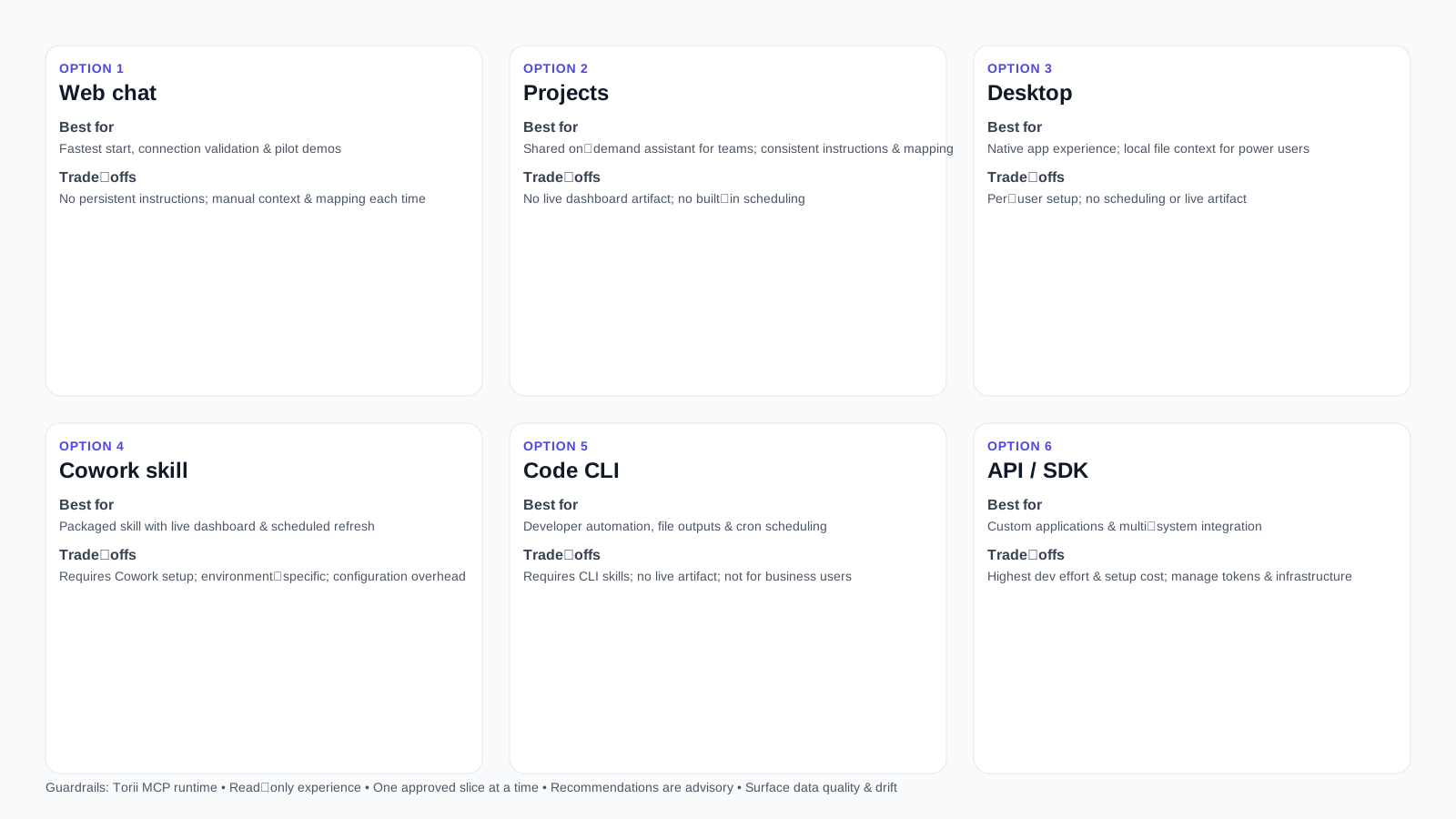
The six deployment options
| Option | Surface | Packaging | Scheduling | Technical level |
|---|---|---|---|---|
| Claude.ai | None | Manual | None |
| Claude.ai | System prompt + context | Manual | Low |
| Claude Desktop | Local config + folder | Manual / cron | Low–Medium |
| Cowork | Skill package | Manual / scheduled task | Medium |
| CLI | CLAUDE.md + scripts | Cron / hooks | Medium–High |
| Programmatic | Custom application | Full control | High |
Option 1: Claude.ai web chat
What it is
Open claude.ai, add Torii as an integration, and query Torii data in a plain chat session. No packaging, no configuration files, no code.
When to use it
Choose web chat when you want the fastest possible start, you are validating whether the MCP connection works, or you have a small group of expert users who are comfortable prompting Claude directly.
Benefits
Fastest setup, zero infrastructure, immediate iteration. Suitable for pilots, demonstrations, and early exploration.
Tradeoffs
No persistent instructions. Every new session starts fresh — users must re-establish context, re-reference the tenant mapping, and re-apply the read-only constraint manually. Not suitable for business-user self-service or recurring use.
Best fit
Pilots, single-session analyses, connection validation, and one-off stakeholder demonstrations.
Option 2: Claude.ai Projects
What it is
A Claude Project is a persistent workspace with custom system instructions and shared context. Every conversation inside the project inherits those instructions — your read-only rules, approved Organizational View, vocabulary, and tenant mapping reference are always in scope.
This is the closest Claude equivalent to a ChatGPT Custom GPT — a named, configured assistant that team members can return to without re-prompting from scratch. No code or CLI tools required.
When to use it
Choose Projects when you want a consistent, repeatable on-demand experience for business users, you want to share a dashboard assistant with your team, but you do not need live visual artifacts or automated scheduling.
Benefits
- Persistent system instructions across all sessions.
- Shareable with team members — everyone gets the same consistent behavior.
- Tenant mapping JSON and reference files can be uploaded as project context.
- No installation, CLI tools, or skill packaging required.
- Works on any device with a browser.
Tradeoffs
No live visual artifact (that is Cowork-specific). No automated scheduling without external tooling. Dashboard output is conversational.
Best fit
Teams wanting a named, consistent on-demand dashboard assistant without technical setup. The on-demand use case without Cowork.
Quick setup
- Create a project at claude.ai with a name like
SaaS Rationalization Dashboard. - In the project Instructions, paste the read-only rules, approved Organizational View, and dashboard vocabulary from your tenant mapping guide.
- Upload your
tenant-mapping-template.jsonas a project file for persistent reference. - Add the Torii MCP integration to the project.
- Share with team members.
Option 3: Claude Desktop app
What it is
The Claude Desktop app supports local MCP server configuration via claude_desktop_config.json. When pointed at the Torii MCP server, it connects Claude to your Torii tenant from your desktop environment. Optionally, it can also be pointed at a local folder containing context files — saved tenant mappings, reference documents, previous dashboard outputs.
When to use it
Choose Desktop when users prefer a native app experience, you want to keep the tenant mapping as a local file alongside the conversation, or you need to work without a browser tab.
Benefits
- Local file context: Claude can read your saved
tenant-mapping-template.jsondirectly from disk. - Native app experience — no browser required.
- Can be combined with a local folder of reference documents for richer context.
- Suitable for individual power users and developers.
Tradeoffs
Per-user setup required. No live visual artifact. No built-in scheduling.
Best fit
Power users, developers, and individuals who want a desktop-native experience with local file context.
Option 4: Cowork Skill
What it is
Cowork adds a skill packaging layer, live sidebar artifacts, and scheduled tasks on top of the MCP connection. The saas-rationalization-dashboard skill defines a consistent workflow — field discovery, mapping, dashboard generation — that any user can invoke by name. The live artifact uses window.cowork.callMcpTool to pull live Torii data at render time and persists in the sidebar across sessions.
When to use it
Choose Cowork when you want a packaged, named skill with consistent behavior, a live interactive dashboard artifact that refreshes on open, or automated recurring refresh via Cowork scheduled tasks.
Benefits
- Named skill with persistent behavior definitions.
- Live dashboard artifact that always shows current Torii data.
- Scheduled tasks for automated recurring refresh and digests.
- The Tier 1–3 skill packages in this repository are purpose-built for this surface.
Tradeoffs
Requires Cowork environment setup and skill installation. Live artifact requires UUID configuration. Cowork-specific capabilities (window.cowork.callMcpTool, scheduled tasks) do not transfer to other surfaces.
Best fit
Organizations that want a packaged, governed experience for business users, recurring dashboard refresh without developer effort, and a live visual artifact in the sidebar.
Option 5: Claude Code CLI
What it is
Claude Code is Anthropic's CLI tool for agentic workflows. Configured with the Torii MCP server, it can run multi-step dashboard workflows from the terminal, save outputs to local files (markdown reports, HTML dashboards, JSON snapshots), and be scheduled via system cron for recurring refreshes.
A CLAUDE.md file in the project directory serves as persistent context — paste your tenant mapping, read-only rules, and dashboard instructions there. Claude Code reads this automatically on every run.
When to use it
Choose Claude Code when you are a developer or technical operator who wants code-level control, you need to save dashboard outputs as files, commit them to a repository, or push them to downstream systems, or you want to schedule refreshes via cron without building a full application.
Benefits
- Full agentic capability: field discovery, mapping, dashboard generation, and file output in a single run.
CLAUDE.mdprovides persistent context without a running application.- Outputs can be saved as markdown, HTML, or JSON — suitable for committing to a repo or emailing.
- Cron scheduling is straightforward for recurring refreshes.
- No application infrastructure required beyond the CLI.
Tradeoffs
Requires terminal access and technical comfort. Not suitable for non-technical business users. No live visual artifact (outputs are files, not a running sidebar widget).
Best fit
Developers, platform engineers, and technical operators who want automation without building a full application.
Example cron-driven refresh
# In crontab — run every weekday at 8 AM
0 8 * * 1-5 cd /path/to/project && claude \
  "Refresh the read-only SaaS rationalization dashboard using the tenant mapping in CLAUDE.md. \
   Output in daily digest format. Save to dashboard-refresh-$(date +\%Y\%m\%d).md. \
   Do not write back to Torii."
Option 6: Claude API / Agent SDK
What it is
The Anthropic API and Agent SDK provide full programmatic control over Claude, tool use, and scheduling. This surface is for building custom applications — an internal dashboard tool, an automated digest delivery system, a Slack bot that posts weekly rationalization summaries, or a multi-agent pipeline that handles field discovery, mapping, and report generation as separate orchestrated steps.
When to use it
Choose the API when you are building a production application, you need to integrate the dashboard refresh into an existing system (Slack, email, data warehouse, BI tool), or you need scheduling guarantees and delivery control that go beyond what cron or Cowork scheduled tasks provide.
Benefits
- Full control over scheduling, output format, and downstream delivery.
- Integrates with any system: email, Slack, databases, BI tools, webhooks.
- Agent SDK supports multi-step orchestration — each phase (discovery, mapping, generation, delivery) can be a distinct agent step.
- Most scalable and production-grade option.
Tradeoffs
Requires development effort. OAuth token management for Torii MCP must be handled in application code. Highest setup cost of all options.
Best fit
Engineering teams building internal tools, organizations with existing automation infrastructure, and advanced use cases requiring multi-system integration.
Choosing by use case
"I want to try this quickly with minimal setup"
→ Option 1: Claude.ai web chat
"I want a consistent dashboard assistant I can share with my team, no coding required"
→ Option 2: Claude.ai Projects
"I want a desktop-native experience with my tenant mapping as a local file"
→ Option 3: Claude Desktop
"I want a packaged skill with a live dashboard artifact and optional scheduling"
→ Option 4: Cowork Skill
"I'm a developer, I want automated refresh outputs saved as files via cron"
→ Option 5: Claude Code CLI
"I'm building an application or need to integrate with existing systems"
→ Option 6: Claude API / Agent SDK
Recommended rollout sequence
For most organizations, the right order is:
- Web chat — validate the MCP connection and confirm the dashboard value.
- Projects — once prompts stabilize, move business users to a named project for consistency.
- Cowork or Claude Code — when recurring refresh or stronger packaging is needed.
- API — only when building a production application is justified by scale or integration requirements.
Avoid jumping to API or Cowork before the tenant field mapping is validated. A packaging layer applied to a bad mapping amplifies the problem at every level.
Guardrails that apply to every option
Regardless of deployment surface:
- Torii MCP is the runtime data access layer.
- The experience is read-only.
- One approved Organizational View is used at a time.
- Recommendations are advisory — never automated actions.
- Field drift pauses affected sections rather than triggering silent guesses.
- Unmapped or poor-quality data is disclosed, not hidden.
Common mistakes across all options
- Skipping connection validation before adding packaging.
- Hardcoding Department as the Organizational View without checking whether it is the right field for the tenant.
- Assuming packaging fixes bad field quality or incomplete mappings.
- Adding scheduling before the on-demand version is validated.
- Allowing write-back because MCP technically supports action tools.
Updated 6 months ago