

Connect ChatGPT to Torii
Using the Torii web MCP for for Dashboarding
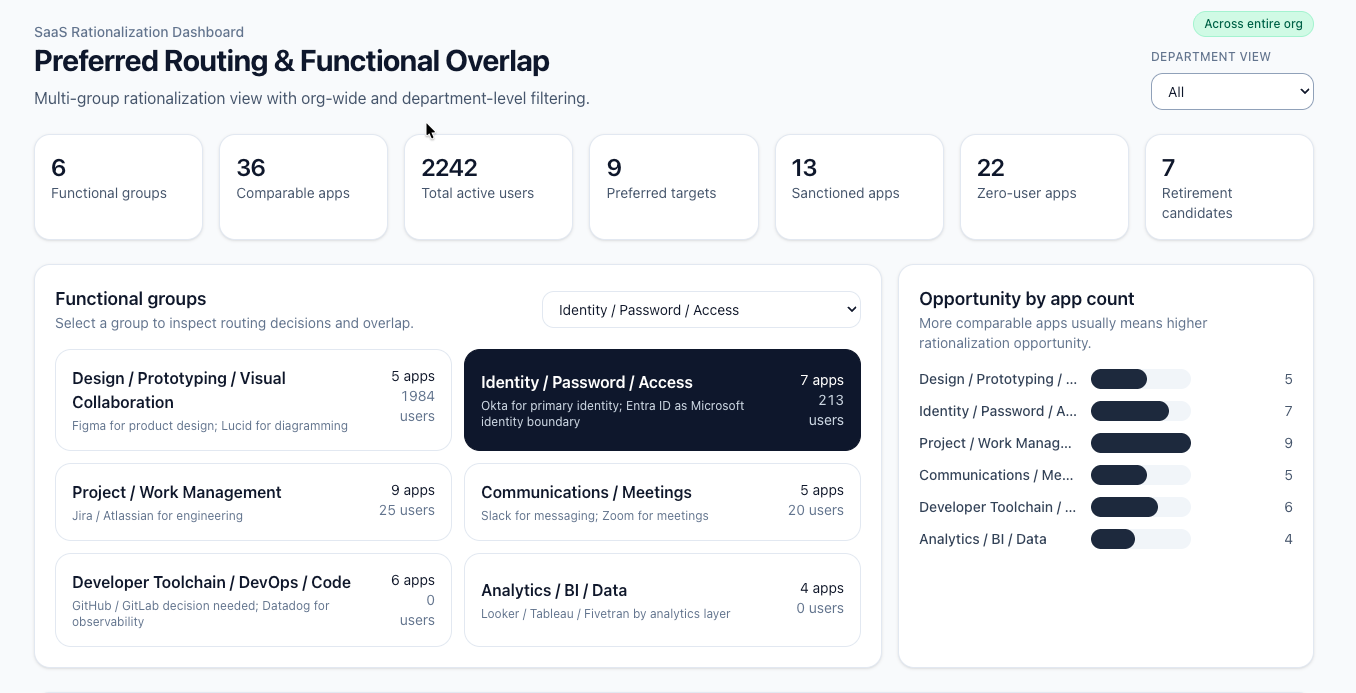
Purpose
This guide shows how to connect ChatGPT to Torii using Torii’s remote MCP server, validate the connection, and prepare ChatGPT for a safe dashboarding use case.
What you will accomplish
By the end of this guide, you should have:
- the Torii connector added in ChatGPT
- OAuth completed successfully
- the connector enabled in a new chat
- a validated connection that can answer basic Torii questions
- a clear decision to use ChatGPT in read-only dashboard mode
What is Torii MCP?
Torii provides a web Model Context Protocol (MCP) server that lets AI assistants like Claude and ChatGPT securely query and act on Torii data using your existing Torii account and permissions.
MCP is an open standard for AI assistants and agents to connect to external data sources and tools through a common interface. This makes it easy for these assistants and agents to use data from Torii for reporting and decision making directly embedded into these tools.
Important note about this guide
Torii’s MCP server can expose both read/query capabilities and action capabilities. The official article support article provides the most up to date capabilities:
- search and read apps, users, and contracts
- list workflows, audit logs, and transactions
- run tools like
match_apps,search_apps, andrun_workflow - take actions you have granted it, such as updating a user or creating a contract
This guide intentionally uses a read-only dashboard pattern. Even if action tools are available in your environment, this setup is meant for analysis, drilldowns, and recommendations only.
Prerequisites
Before you begin, make sure you have:
- A Torii account you can sign in to
- A ChatGPT plan that supports remote MCP servers through Connectors
- Permission to complete OAuth sign-in against Torii
- Agreement on whether your dashboard assistant will be used in read-only mode
ChatGPT supports remote MCP servers via Connectors on Plus, Pro, Business, and Enterprise plans.
Torii MCP server details
Use the official Torii MCP server endpoint:
- MCP Server URL:
https://api.toriihq.com/mcp
Torii publishes that URL directly in the article.
Step 1: Open ChatGPT Connectors
In ChatGPT:
-
Open Settings
-
Open Connectors
-
Click Create
- or use Add custom connector in Developer Mode if that is what your UI shows
Torii notes that ChatGPT’s connector UI evolves quickly, so exact button names may vary over time.
Step 2: Add Torii as a connector
Enter the following values:
- Name:
Torii - MCP Server URL:
https://api.toriihq.com/mcp - Authentication:
OAuth
These are the values Torii documents for ChatGPT.
Step 3: Save and connect
After you save the connector:
- ChatGPT redirects you to Torii
- Sign in with your Torii account
- Approve the OAuth consent flow
- Return to ChatGPT
Torii documents that ChatGPT will redirect you to sign in to Torii during this process.
Step 4: Enable the connector in a new chat
After the connector is added:
- Open a new chat
- Open the tools menu
- Enable the Torii connector
Torii documents this final in-chat enablement step explicitly.
Step 5: Validate the connection
Before you try to build a dashboard, validate that the connector works with a few simple prompts.
Use prompts like:
Which apps in Torii have more than 100 users?Show me contracts renewing in the next 60 days.List workflows that ran in the last 7 days.
These example prompts come directly from Torii’s MCP article.
Why these are good validation prompts
These checks confirm that the connector can reach multiple Torii domains without requiring write actions:
- Apps confirms application visibility
- Contracts confirms renewal and commercial data visibility
- Workflows confirms workflow-side metadata access
If these work, your MCP connection is ready for a read-only dashboard use case.
Security and permissions model
Torii’s article makes two security points that matter for dashboarding:
- the MCP server uses the same access controls as the Torii UI
- the MCP server acts on behalf of the signed-in user and respects that user’s Torii role
This means your dashboard assistant will only be as broad as the Torii permissions of the person who connected it.
Recommended practice
Use an account that has the appropriate level of permissions for the data required, but still follows your internal least-privilege rules.
Read-only dashboard policy
For this dashboard pattern, configure your prompts, instructions, and review process so the assistant is used only for:
- Reading Torii data
- Summarizing portfolio and usage patterns
- Grouping apps by organizational slice
- Surfacing renewal and spend signals
- Identifying overlap and rationalization candidates
- Preparing review queues for human decision-makers
Do not use this dashboard setup to:
- Update users
- Create contracts
- Change owners
- Trigger workflows
- Remove licenses
- Write back to Torii
Even though Torii MCP may expose action tools, this guide intentionally avoids them.
Common setup issues
The Connectors option is missing
Torii notes that ChatGPT connector availability changes quickly and recommends checking OpenAI’s connector documentation if the UI option is not visible.
OAuth completed, but ChatGPT still cannot use Torii
Make sure you also enabled the Torii connector from the tools menu in a new chat. Adding the connector is not enough by itself.
The connector works, but results look incomplete
This could be related to Torii role-scopes, insufficient supporting knowledge about the use case, or crafting of the prompt that was used.
The assistant offers actions you do not want to allow
That is expected in some environments because Torii MCP can expose action capabilities too. For this dashboard pattern, enforce a read-only instruction set and through instructional guardrails - prevent writing back.
Recommended validation checklist
Use this checklist before moving on:
- The Torii connector appears in ChatGPT
- OAuth sign-in completed successfully
- The connector can be enabled in a chat
- Basic prompts return Torii data
- Results reflect the expected Torii permission scope
- Your team has agreed that the dashboard workflow is read-only
What comes next
Once ChatGPT is connected to Torii through MCP, the next step is to design the dashboard experience itself:
- Choose the organizational drilldown field
- Define read-only rules
- Decide which dashboard views matter most
- Standardize prompt patterns for business users
Updated 6 months ago