

Build - Custom GPT Skill Package
A controlled, repeatable dashboard assistant for Software Asset Management
Purpose
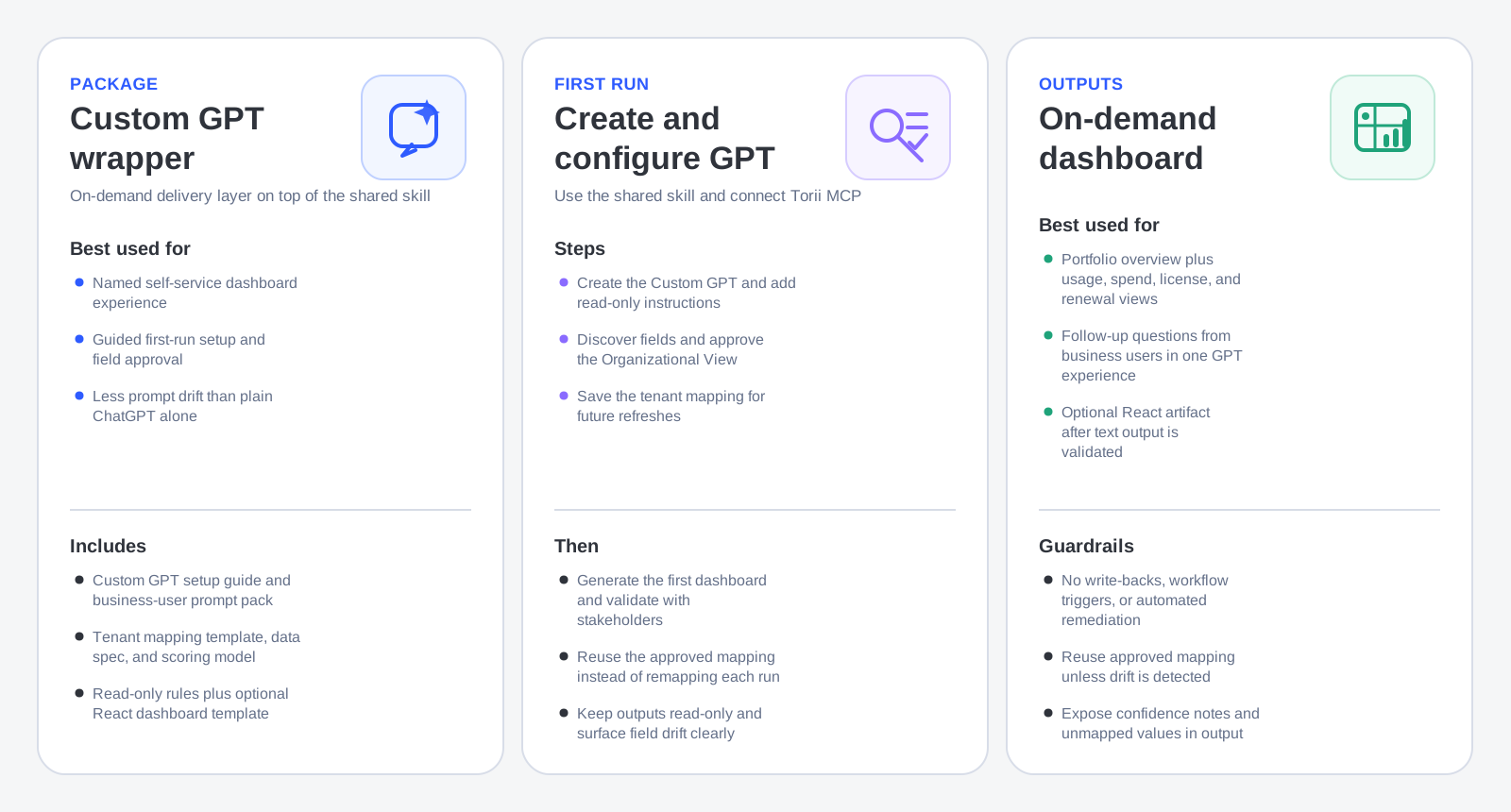
This package is the on-demand wrapper for the shared read-only SaaS rationalization dashboard. To get the assets for this package please contact your Torii Customer Success Manager.
Use it when we need a Custom GPT that can:
- Connect to Torii through MCP
- Guide the user through first-run field discovery
- Help approve a tenant-specific mapping
- Generate a read-only dashboard on demand
- Reuse the approved mapping for future refreshes
This package is for the delivery layer, not the shared dashboard logic layer.
What this package depends on
This package assumes two things already exist:
- ChatGPT is connected to Torii through MCP
- The shared read-only dashboard skill is installed or enabled
Torii’s official MCP article documents the ChatGPT connection flow:
- Use Settings → Connectors
- Create a custom connector
- Set the MCP server URL to
https://api.toriihq.com/mcp - Use OAuth
- Enable the Torii connector in a new chat
- Operate under the signed-in user’s Torii role and permissions
This package does not replace that connection. It packages the customer experience on top of it.
What this package contains
This package contains 10 files arranged like this:
customer-custom-gpt-skill-package/
├─ README.md
├─ 01-solution-brief.md
├─ 02-custom-gpt-setup-guide.md
├─ 03-tenant-field-mapping-guide.md
├─ 04-business-user-field-mapping-wizard.md
├─ 05-tenant-mapping-template.json
├─ 06-dashboard-data-spec.md
├─ 07-scoring-and-recommendation-model.md
├─ 08-read-only-dashboard-rules.md
├─ 09-business-user-prompt-pack.md
└─ 10-react-dashboard-template.jsx
What each file is for
README.md
README.mdThis is the package overview.
It explains:
-
The package is for a Custom GPT + Skill
-
The dashboard is ChatGPT-native
-
The design is read-only
-
The intended use is on-demand dashboard generation
-
The recommended sequence is:
- Install or enable the shared Skill
- Create the Custom GPT
- Run field discovery
- Complete the field mapping wizard
- Generate the first dashboard
- Validate with stakeholders
- Reuse the approved mapping for future refreshes
01-solution-brief.md
01-solution-brief.mdThis is the high-level customer-facing explanation of the solution.
It explains:
- Why SaaS rationalization matters
- How ChatGPT and Torii data are used together
- That the dashboard supports tenant-specific field mapping
- That the solution is read-only
- That deployment options include both Custom GPT and Agent wrappers
02-custom-gpt-setup-guide.md
02-custom-gpt-setup-guide.mdThis is the main deployment guide for this package.
It defines:
- The recommended GPT name
- The GPT description
- The GPT instructions
- The first-run prompt
- The refresh prompt
- The intended business-user experience
03-tenant-field-mapping-guide.md
03-tenant-field-mapping-guide.mdThis explains how to map customer-specific Torii fields into the dashboard schema.
It covers:
- Organizational View mapping
- Functional grouping
- App metadata
- Usage fields
- License and financial fields
- Contract and renewal fields
- Security and governance fields
- Recommended mapping workflow
- Field drift handling
04-business-user-field-mapping-wizard.md
04-business-user-field-mapping-wizard.mdThis is the first-run guided workflow for a business user.
It includes:
- Read-only scope confirmation
- Field discovery
- Organizational View selection
- Functional grouping selection
- Usage and financial field confirmation
- Mapping review
- Mapping save behavior
- Confidence guidance
- Field drift messaging
05-tenant-mapping-template.json
05-tenant-mapping-template.jsonThis is the reusable JSON structure for saving the approved tenant mapping.
Use it as the persistent configuration that future dashboard refreshes should reuse.
06-dashboard-data-spec.md
06-dashboard-data-spec.mdThis defines the target dashboard schema.
Use it to standardize what the Custom GPT should produce after mapping is complete.
07-scoring-and-recommendation-model.md
07-scoring-and-recommendation-model.mdThis defines the recommendation and ranking logic.
Use it to keep overlap findings, review candidates, and prioritization labels consistent.
08-read-only-dashboard-rules.md
08-read-only-dashboard-rules.mdThis defines the operating guardrails.
Use it to keep the Custom GPT from drifting into write-back or workflow-trigger behavior.
09-business-user-prompt-pack.md
09-business-user-prompt-pack.mdThis provides ready-to-use prompt patterns for business users.
Use it after the first dashboard is configured so users can ask repeatable questions without reinventing prompts.
10-react-dashboard-template.jsx
10-react-dashboard-template.jsxThis is the optional interactive dashboard template.
Use it if the user wants a more visual dashboard artifact after the dashboard logic is already validated in chat.
What this package is for
This package is for a use case or workflow that requires:
- A named Custom GPT
- An on-demand experience
- A guided setup flow
- A reusable read-only dashboard behavior
- Less prompt drift than plain ChatGPT alone
This package is the right fit when we need self-service dashboarding inside a Custom GPT, but we don't yet need scheduled refreshes.
What this package is not for
This package is not for:
- Scheduled refreshes
- Daily digests
- Recurring review jobs
- Background-style monitoring
Those belong in the Agent wrapper package instead.
This package also does not include the shared skill itself. It expects that the shared skill is already available.
Exact prerequisites
Before using this package, make sure all of the following are true:
- The shared read-only skill is installed or enabled
- ChatGPT is connected to Torii through MCP
- The Torii connector can be enabled in a new chat
- The Torii-connected account has enough visibility for dashboard analysis
- The deployment is explicitly intended to be read-only
- You are ready to create a Custom GPT in your ChatGPT environment
Exact steps to use this package
Step 1: Install or enable the shared skill
This package assumes the shared dashboard skill already exists.
Before creating the Custom GPT, install or enable the shared skill:
saas-rationalization-dashboard
This package uses that skill as its core dashboard logic layer.
Without the shared skill, this package is only documentation and templates.
Step 2: Connect ChatGPT to Torii through MCP
Set up Torii as a ChatGPT connector using the official MCP flow:
-
Open Settings
-
Open Connectors
-
Click Create or Add custom connector
-
Enter:
- Name:
Torii - MCP Server URL:
https://api.toriihq.com/mcp - Authentication:
OAuth
- Name:
-
Save and connect
-
Sign in to Torii
-
Approve the OAuth flow
-
Open a new chat
-
Enable the Torii connector from the tools menu
These steps come from Torii’s official MCP article.
Step 3: Create the Custom GPT
Create a new Custom GPT in your ChatGPT environment.
Use the values from 02-custom-gpt-setup-guide.md.
Recommended GPT name
Use:
SaaS Rationalization Analyst
Recommended GPT description
Use:
Builds a read-only SaaS rationalization dashboard from Torii data. It discovers customer fields, guides business users through field mapping, normalizes apps, users, contracts, licenses, usage, and security signals, then generates a department or organizational-view-aware dashboard with preferred routing and read-only decision queues.
Recommended GPT instructions
Use instructions based on the setup guide:
- Use the shared SaaS Rationalization Dashboard Skill
- Always start with field discovery and tenant mapping if no mapping exists
- Use the customer-approved mapping for future dashboard generation
- Operate read-only
- Do not write back to Torii
- Do not trigger workflows
Step 4: Make the shared package files available to the GPT authoring workflow
When configuring the Custom GPT, use the files in this package as the source material for:
- Solution framing
- Mapping behavior
- Read-only guardrails
- Dashboard schema
- Prompt suggestions
- Optional React artifact generation
At a minimum, the Custom GPT setup should reflect:
01-solution-brief.md03-tenant-field-mapping-guide.md04-business-user-field-mapping-wizard.md06-dashboard-data-spec.md07-scoring-and-recommendation-model.md08-read-only-dashboard-rules.md09-business-user-prompt-pack.md
Step 5: Start the first-run setup in the Custom GPT
Use the first-run prompt from 02-custom-gpt-setup-guide.md.
A recommended first-run prompt is:
Set up a SaaS rationalization dashboard for this Torii tenant. Discover the available app, user, and contract fields, recommend a field mapping, and guide me through approving the Organizational View and Functional Capability fields.This is the correct first-run prompt because it tells the GPT to:
- Inspect available tenant fields
- Recommend mappings instead of assuming them
- Walk the user through approval
- Establish both the business slice and the functional grouping model
Step 6: Run field discovery
During the first run, the Custom GPT should inspect available Torii-side metadata relevant to:
- App fields
- User fields
- Contract fields
- App-user fields when available
This behaviour is described in the tenant mapping guide.
The GPT should then organize these fields into business-friendly categories instead of forcing the user to choose raw technical keys.
Step 7: Complete the field mapping wizard
Once discovery is done, the GPT should follow the mapping wizard flow in 04-business-user-field-mapping-wizard.md.
That means walking through these steps:
- Confirm the dashboard is read-only
- Discover fields
- Choose the Organizational View
- Map functional grouping
- Confirm usage and financial fields
- Review the mapping summary
- Save the tenant mapping
Step 8: Approve the Organizational View
This is the most important first-run decision.
The GPT should explicitly ask which field should power the top-level dashboard dropdown.
Common choices include:
- Department
- Business Unit
- Legal Entity
- Region
- Cost Center
- A combined view such as Business Unit + Legal Entity
Do not auto-select Department unless it is clearly the best choice for the tenant.
Step 9: Approve functional grouping
After the Organizational View is chosen, approve the fields that will support:
- Functional Domain
- Functional Capability
- Functional Capability Path
If the tenant does not have direct equivalents, the GPT should use the fallback logic described in the mapping guide, such as:
- App category
- Custom category
- Tags
- App description
- Vendor category
- Manual override
Step 10: Confirm usage, financial, contract, and security mappings
The GPT should then guide the user through the remaining mapping categories:
- App metadata
- Usage and engagement
- License and financial fields
- Contract and renewal fields
- Security and governance fields
The mapping wizard should present these in business language, not in low-level system language unless the user asks for advanced detail.
Step 11: Save the tenant mapping
Once the user approves the mapping, save it using the structure from:
05-tenant-mapping-template.json
This saved mapping becomes the reusable configuration for future dashboard refreshes.
The goal is that the Custom GPT should not have to rediscover and remap fields on every run.
Step 12: Generate the first dashboard
After the mapping is saved, prompt the GPT to generate the first dashboard.
A good prompt is:
Generate the read-only SaaS rationalization dashboard for this Torii tenant using the approved tenant mapping. Include portfolio summary, usage by Organizational View, license distribution, spend concentration, renewal exposure, overlap candidates, and a decision queue.At this step, the GPT should use:
06-dashboard-data-spec.md07-scoring-and-recommendation-model.md08-read-only-dashboard-rules.md
Step 13: Validate the output with stakeholders
The package README explicitly says to validate output with business stakeholders.
During validation, check that:
- The Organizational View is correct
- Grouped values look business-readable
- Overlap findings make sense
- Recommendation labels are understandable
- Unmapped or poor-quality data is disclosed
- The experience remains read-only
This is the step where you confirm the package is usable in the customer’s real operating context.
Step 14: Reuse the approved mapping for future refreshes
Once the first dashboard is approved, use the refresh prompt from the setup guide.
Recommended refresh prompt:
Refresh the SaaS rationalization dashboard using the approved tenant mapping. Keep the output read-only and show any field drift or missing data.This refresh behavior is one of the main reasons to use this package. It turns a first-run setup into a repeatable Custom GPT experience.
Exact first-run flow
For clarity, the exact first-run sequence is:
- Install or enable the shared skill
- Connect ChatGPT to Torii through MCP
- Create the Custom GPT
- Configure the GPT name, description, and instructions
- Start the first-run prompt
- Discover app, user, and contract fields
- Run the business-user mapping wizard
- Approve the Organizational View
- Approve functional grouping and supporting fields
- Save the tenant mapping
- Generate the first dashboard
- Validate with business stakeholders
Exact repeat-run flow
After initial setup, the normal repeat sequence is:
- Open the Custom GPT
- Ensure Torii MCP access is available in the environment
- Ask the GPT to refresh the dashboard using the approved mapping
- Review any field drift or missing-data warnings
- Analyze the updated dashboard
- Ask follow-up business questions using the prompt pack
What the Custom GPT should output
When this package is used correctly, the Custom GPT should produce outputs such as:
- Portfolio overview
- Usage by Organizational View
- License distribution by Organizational View
- Spend concentration by Organizational View
- Renewal and contract exposure
- Functional overlap candidates
- Read-only decision queues
- Confidence and data-quality notes
It may also generate an interactive dashboard artifact using the React template after the text-based dashboard is validated.
Business-user experience
According to the setup guide, the intended user experience is:
- The user opens the Custom GPT
- The GPT discovers fields
- The GPT recommends mappings
- The user approves the Organizational View and functional grouping fields
- The GPT generates the read-only dashboard
- The user asks follow-up questions or exports review summaries
That is the core reason to choose this package instead of plain ChatGPT alone: it creates a guided, repeatable self-service experience.
What this package must never do
Even though Torii MCP can expose action capabilities, this Custom GPT package should never be used to:
- Update Torii records
- Trigger workflows
- Create contracts
- Remove licenses
- Modify ownership
- Perform write-back automation
Torii’s MCP article confirms that connected assistants can take actions the user has granted them, but this package is specifically designed for read-only dashboarding.
Troubleshooting
The GPT keeps asking to remap fields every time
This usually means the tenant mapping was not saved cleanly, or the GPT is not reusing the saved configuration consistently.
The GPT uses the wrong drilldown field
Re-run the mapping workflow and explicitly confirm the approved Organizational View.
The GPT produces inconsistent group labels
Update the normalization rules in the tenant mapping and regenerate the dashboard.
The GPT sees some Torii data but not all of it
This may be a Torii permission-scope issue, or the prompt used.
The GPT offers actions
That can happen because MCP may expose action capabilities. Keep the Custom GPT instructions explicitly read-only and reject write-back usage.
Final checklist
Before calling this package ready, confirm that:
- The shared skill is enabled
- ChatGPT is connected to Torii MCP
- The Custom GPT is created and configured
- The GPT instructions explicitly enforce read-only behavior
- One Organizational View is approved
- The tenant mapping is saved
- The first dashboard is validated by stakeholders
- Future refreshes reuse the approved mapping
- Field drift is surfaced clearly
- No write-back behaviour is allowed
Updated 6 months ago