

Build - Base Dashboard Skills for ChatGPT
ChatGPT skills package to build customizable dashboards using the Torii MCP
Purpose
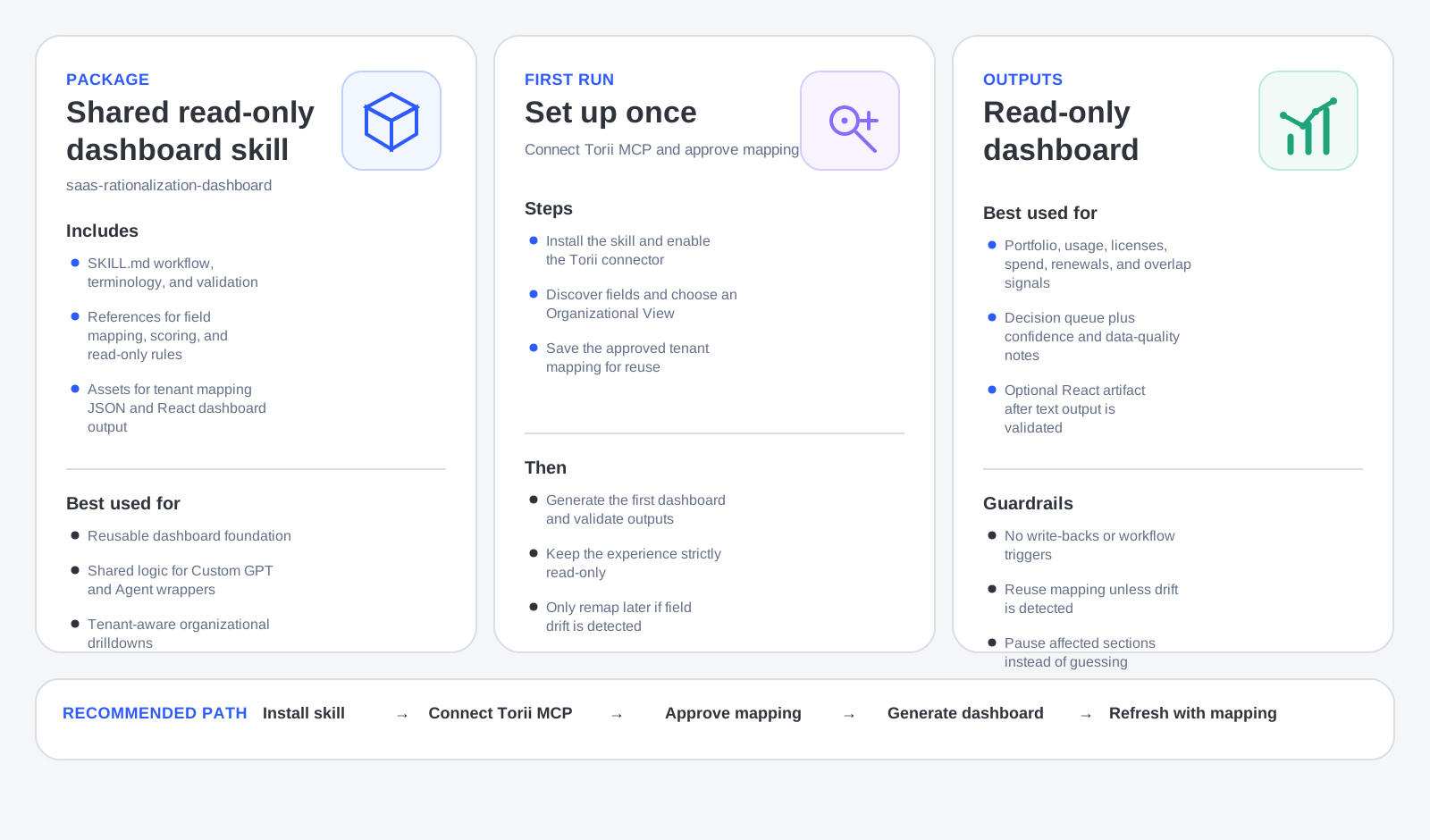
This package is the shared, reusable foundation for a read-only SaaS rationalization dashboard in ChatGPT, powered by Torii MCP. To get this package or any of the other skills packages, please contact your Torii Customer Success Manager.
Use it when you want one common dashboard layer that can:
- Read Torii data in ChatGPT
- Map tenant-specific fields into a stable dashboard model
- Support drill downs by Department, Business Unit, Legal Entity, Region, Cost Center, or another approved slice
- Produce overlap, usage, license, spend, and renewal findings
- Stay strictly read-only
This package is the base for the two wrapper packages:
customer_custom_gpt_skill_packagecustomer_agent_skill_package
What this package contains
The package contains 14 files arranged like this:
saas-rationalization-dashboard/
├─ SKILL.md
├─ references/
│  ├─ tenant-field-mapping-guide.md
│  ├─ business-user-field-mapping-wizard.md
│  ├─ field-mapping-decision-tree.md
│  ├─ dashboard-data-spec.md
│  ├─ scoring-and-recommendation-model.md
│  ├─ read-only-dashboard-rules.md
│  ├─ custom-gpt-setup-guide.md
│  ├─ agent-refresh-guide.md
│  ├─ daily-refresh-digest-template.md
│  └─ business-user-prompt-pack.md
├─ assets/
│  ├─ tenant-mapping-template.json
│  └─ react-dashboard-template.jsx
└─ agents/
   └─ openai.yaml
What each file is for
SKILL.md
SKILL.mdThis is the main skill definition.
It defines:
- The skill name:
saas-rationalization-dashboard - The purpose of the skill
- The read-only operating rule
- The core workflow
- The required terminology
- The validation behavior
This skill will help you:
- Discover app, user, and contract metadata
- Run the tenant field mapping flow if no approved mapping exists
- Normalize fields into the dashboard schema
- Build the dashboard using Functional Domain, Functional Capability, Functional Capability Path, and Organizational View
- Apply the scoring model
- Produce read-only findings
- Generate dashboard code from the React template when requested
references/tenant-field-mapping-guide.md
references/tenant-field-mapping-guide.mdExplains how to identify and approve the tenant-specific fields the dashboard should use.
references/business-user-field-mapping-wizard.md
references/business-user-field-mapping-wizard.mdProvides the interactive mapping flow for choosing the right source fields.
references/field-mapping-decision-tree.md
references/field-mapping-decision-tree.mdHelps resolve mapping choices when multiple possible fields exist.
references/dashboard-data-spec.md
references/dashboard-data-spec.mdDefines the normalized dashboard schema that the skill should produce.
references/scoring-and-recommendation-model.md
references/scoring-and-recommendation-model.mdDefines how review candidates are scored and labeled.
references/read-only-dashboard-rules.md
references/read-only-dashboard-rules.mdDefines the allowed and disallowed behavior for the dashboard.
references/custom-gpt-setup-guide.md
references/custom-gpt-setup-guide.mdShows how to package this shared skill into the Custom GPT wrapper later.
references/agent-refresh-guide.md
references/agent-refresh-guide.mdShows how to package this shared skill into the Agent wrapper later.
references/daily-refresh-digest-template.md
references/daily-refresh-digest-template.mdProvides a digest format for recurring refresh scenarios.
references/business-user-prompt-pack.md
references/business-user-prompt-pack.mdProvides reusable business prompts for portfolio analysis and drilldowns.
assets/tenant-mapping-template.json
assets/tenant-mapping-template.jsonProvides the JSON structure for saving the approved tenant mapping.
assets/react-dashboard-template.jsx
assets/react-dashboard-template.jsxProvides the React template for rendering an interactive dashboard artifact when requested.
agents/openai.yaml
agents/openai.yamlDefines the display metadata for the skill, including:
- Display name
- Short description
- Icon
- Brand color
Pre-requisites to use this package
This package depends on Torii MCP being connected to ChatGPT first.
Torii’s official MCP article documents that:
- The Torii MCP server URL is
https://api.toriihq.com/mcp - ChatGPT connects through Settings → Connectors
- Authentication is OAuth
- After connecting, you enable the Torii connector from the tools menu in a chat
- The MCP acts under the signed-in user’s Torii role and permissions
This package is not the connector itself. It is the dashboard behaviour layer that runs on top of that connection.
Exact prerequisites
Before using this package, make sure all of the following are true:
- The skill package has been installed in your ChatGPT skills environment
TODO(verify)exact import/install UI for your environment - ChatGPT is connected to Torii through MCP
- The Torii connector can be enabled in a chat
- The user account has enough Torii visibility for portfolio analysis
- The deployment is explicitly intended to be read-only
Exact steps to use this package
Step 1: Install the skill package
Install or import the saas-rationalization-dashboard package into your ChatGPT skills environment.
This package should be available as the skill named:
saas-rationalization-dashboard
If your environment requires a specific import flow, document that separately as:
- Skill installation/import steps for this workspace
Step 2: Connect ChatGPT to Torii MCP
In ChatGPT:
-
Open Settings
-
Open Connectors
-
Click Create or Add custom connector
-
Enter:
- Name:
Torii - MCP Server URL:
https://api.toriihq.com/mcp - Authentication:
OAuth
- Name:
-
Save and connect
-
Sign in to Torii
-
Approve the OAuth flow
-
Open a new chat
-
Enable the Torii connector from the tools menu
These steps come directly from Torii’s MCP support article.
Step 3: Start a new chat with the skill and connector enabled
Open a new chat where:
- The Torii connector is enabled
- The
saas-rationalization-dashboardskill is available
This is the minimum runtime setup for the package.
Step 4: Run the first-use setup prompt
Use a first prompt like this:
Use the SaaS Rationalization Dashboard skill to set up a read-only dashboard for this Torii tenant. First discover the available app, user, and contract fields. Then help me choose an Organizational View and create the tenant field mapping. Do not write back to Torii.This prompt does four things in the right order:
- Invokes the shared dashboard skill
- Starts field discovery
- Starts the mapping workflow
- Reinforces read-only behavior
Step 5: Complete the tenant field mapping flow
If no approved mapping exists yet, the skill should use the mapping references in this sequence:
references/tenant-field-mapping-guide.mdreferences/business-user-field-mapping-wizard.mdreferences/field-mapping-decision-tree.md
During this step, choose:
- The primary Organizational View
- The source field for that view
- Any normalization rules
- How unmapped values should be handled
Good Organizational View candidates include:
- Department
- Business Unit
- Legal Entity
- Region
- Cost Center
Do not approve Department automatically unless it is actually the best field for the tenant.
Step 6: Save the approved tenant mapping
Once the mapping is approved, save it in the structure defined by:
assets/tenant-mapping-template.json
At minimum, the saved mapping should capture:
- Source field name
- Display label
- Normalization rules
- Null handling
- Fallback behavior
- Owner
- Last reviewed date
This turns the first run into a reusable configuration instead of making the skill rediscover everything each time.
Step 7: Generate the dashboard
Once the mapping exists, use a prompt like this:
Use the approved tenant mapping and generate the read-only SaaS rationalization dashboard for this Torii tenant. Include portfolio summary, usage by Organizational View, license distribution, spend concentration, renewal exposure, overlap candidates, and a decision queue.The skill should now use:
references/dashboard-data-spec.mdreferences/scoring-and-recommendation-model.mdreferences/read-only-dashboard-rules.md
The output should use the normalized model:
- Functional Domain
- Functional Capability
- Functional Capability Path
- Organizational View
Step 8: Validate the output
Before treating the output as ready, check that:
- The Organizational View shown is the approved one
- Grouped values look normalized and business-readable
- Unmapped values are disclosed
- Recommendation labels make sense
- No write-back actions are suggested or attempted
- the dashboard clearly stays in read-only mode
The SKILL.md file also requires validation that:
- Group IDs are valid
- Recommendation labels are recognized
- Scores are in range
- Mapped fields exist
- Field drift triggers remapping instead of guesswork
Step 9: Generate an interactive artifact if needed
If the user wants an interactive dashboard instead of only chat output, use a prompt like:
Generate the dashboard as a React-based interactive artifact using the shared dashboard template, while keeping the same read-only logic and Organizational View mapping.This step uses:
assets/react-dashboard-template.jsx
Use this only after the text-based dashboard logic is already validated.
Step 10: Reuse the package for refreshes
After the first run, normal use becomes much simpler.
Use a refresh prompt like:
Refresh the read-only SaaS rationalization dashboard using the approved tenant mapping. Highlight any changes in usage, licenses, spend, renewal exposure, overlap findings, or data quality.At this point, the skill should:
- Reuse the approved mapping
- Avoid remapping unless drift is detected
- Rebuild the dashboard using the shared model
- Keep outputs read-only
Exact first-run flow
For clarity, the first-time usage sequence is:
- Install the skill
- Connect ChatGPT to Torii MCP
- Enable the Torii connector in chat
- Invoke the skill with the first-use setup prompt
- Discover fields
- Choose the Organizational View
- Complete the mapping wizard
- Save the tenant mapping
- Generate the dashboard
- Validate the output
- Optionally generate the React artifact
Exact repeat-run flow
After setup is complete, the repeat usage sequence is:
- Open a new chat
- Enable the Torii connector
- Invoke the skill
- Tell it to use the approved tenant mapping
- Refresh the dashboard
- Review findings
- Check for field drift or missing data
What the package should output
When used correctly, the package should produce a read-only dashboard with sections such as:
- Portfolio overview
- Usage by Organizational View
- License distribution by Organizational View
- Spend concentration by Organizational View
- Renewal and contract exposure
- Functional overlap candidates
- Decision queue
- Confidence or data quality notes
What this package must never do
Even if Torii MCP exposes action capabilities, this package should never be used to:
- Update a user
- Create a contract
- Run a workflow
- Assign or remove a license
- Change ownership
- Perform automated remediation
Torii’s official MCP support article explicitly says connected assistants can take actions you have granted them, but this package is intentionally constrained to a read-only dashboard role.
Troubleshooting
The skill runs, but the dashboard uses the wrong grouping
Re-run the mapping flow and confirm the approved Organizational View is the one being reused.
The skill asks for remapping on every run
This usually means the tenant mapping was never saved in a reusable way, or the source field is drifting.
The grouped output looks messy
Update the normalization rules in the tenant mapping and rerun the dashboard.
The skill sees Torii data, but some sections are incomplete
This could be related to Torii permission-scopes or construction of the prompt.
The skill offers actions
That can happen because Torii MCP may expose actions in the environment. Keep the prompts and instructions explicitly read-only and reject write-back use.
Final checklist
Before you call this package ready, confirm that:
- The skill is installed
- ChatGPT is connected to Torii MCP
- The Torii connector works in chat
- One Organizational View is approved
- The tenant mapping is saved
- Dashboard sections render correctly
- Recommendations are advisory
- Unmapped values are disclosed
- Field drift is handled safely
- No write-back behaviour is allowed
Updated 6 months ago